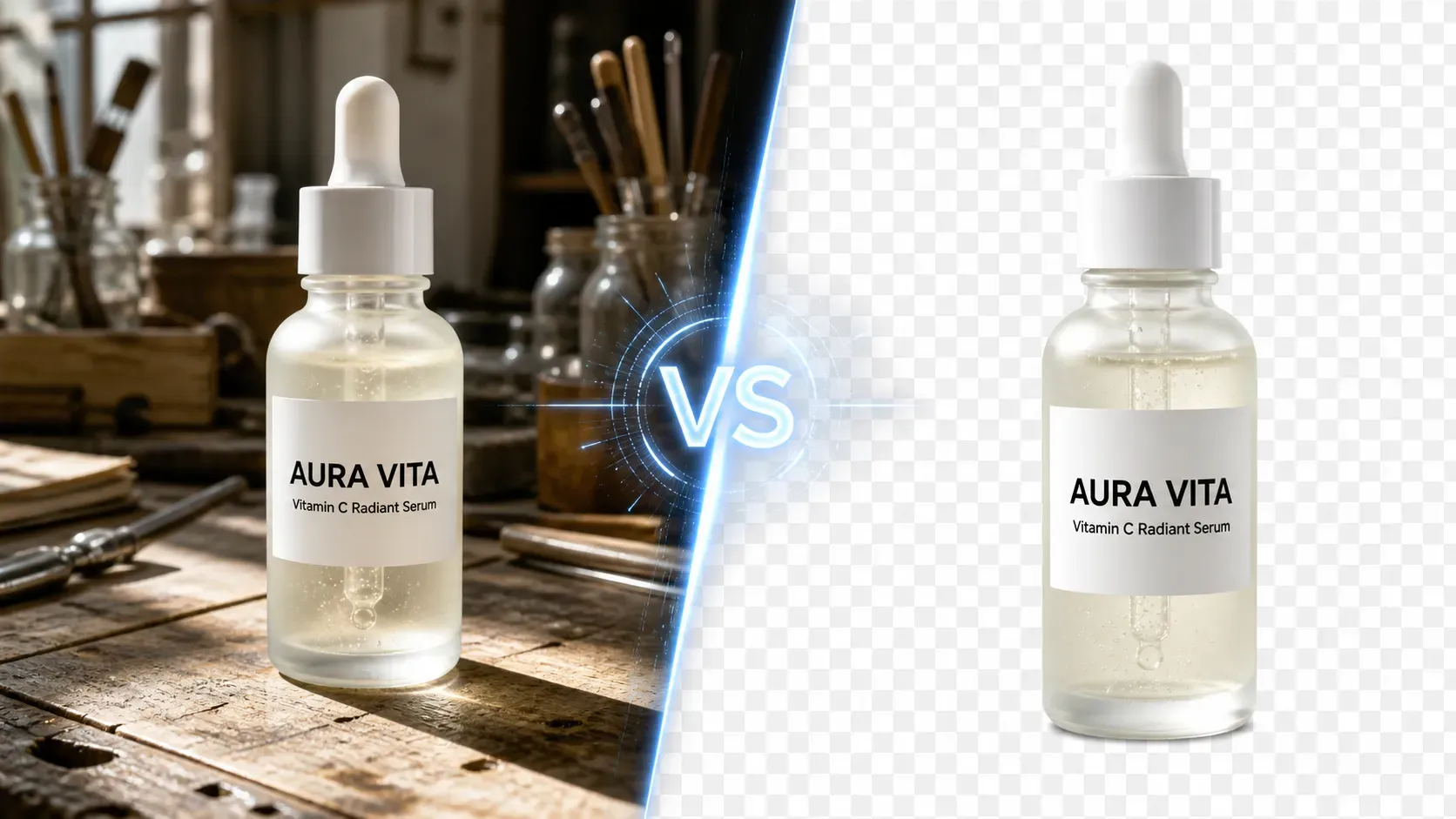
AI People Remover

AI People Remover

Importer une image
photo_camera

Importer une image

Prompt
34/2000
Licence commerciale incluse
Plus dans
AI Object Remover: One-Click Fast Removal of Unwanted Objects from Photos

AI Object Remover: One-Click Fast Removal of Unwanted Objects from Photos


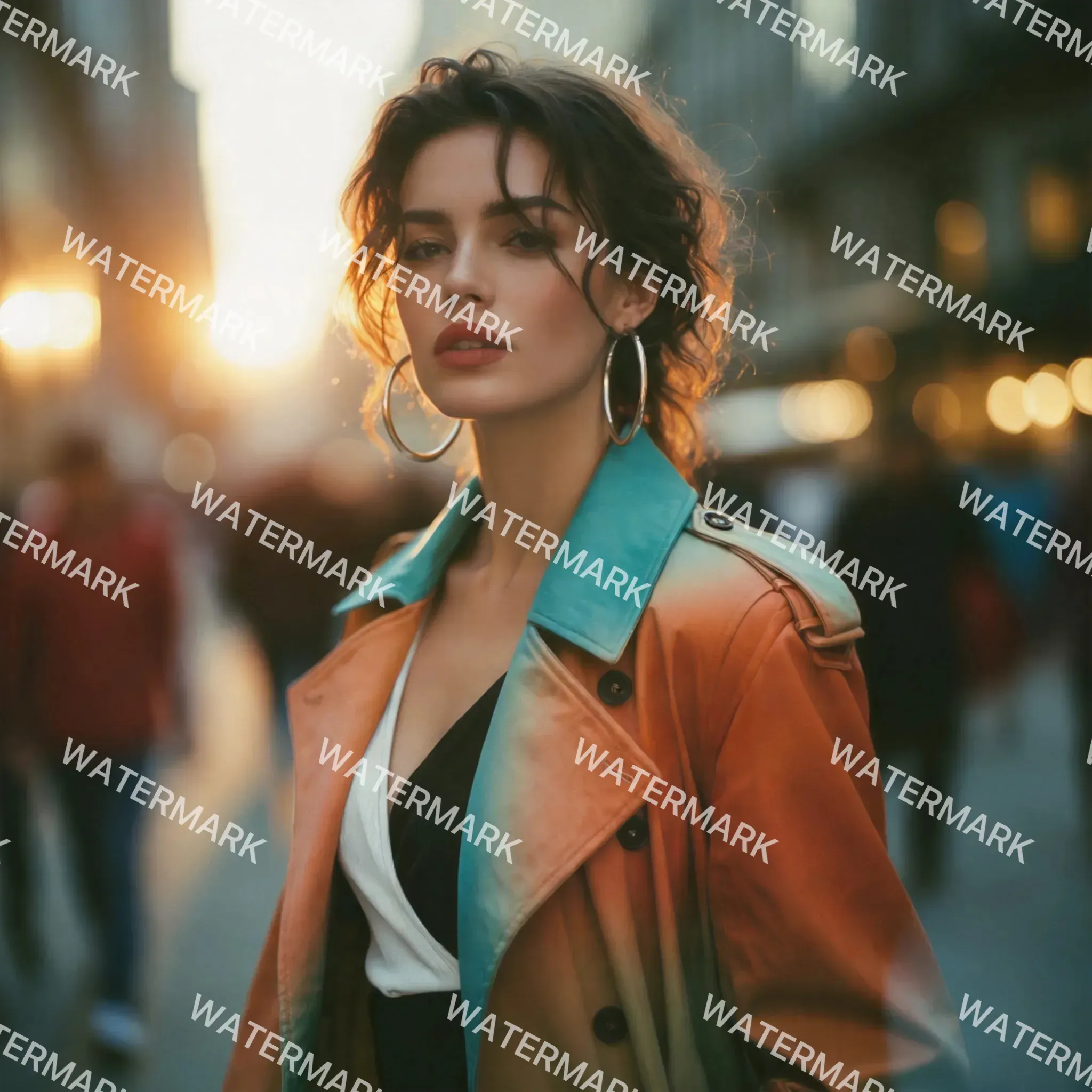
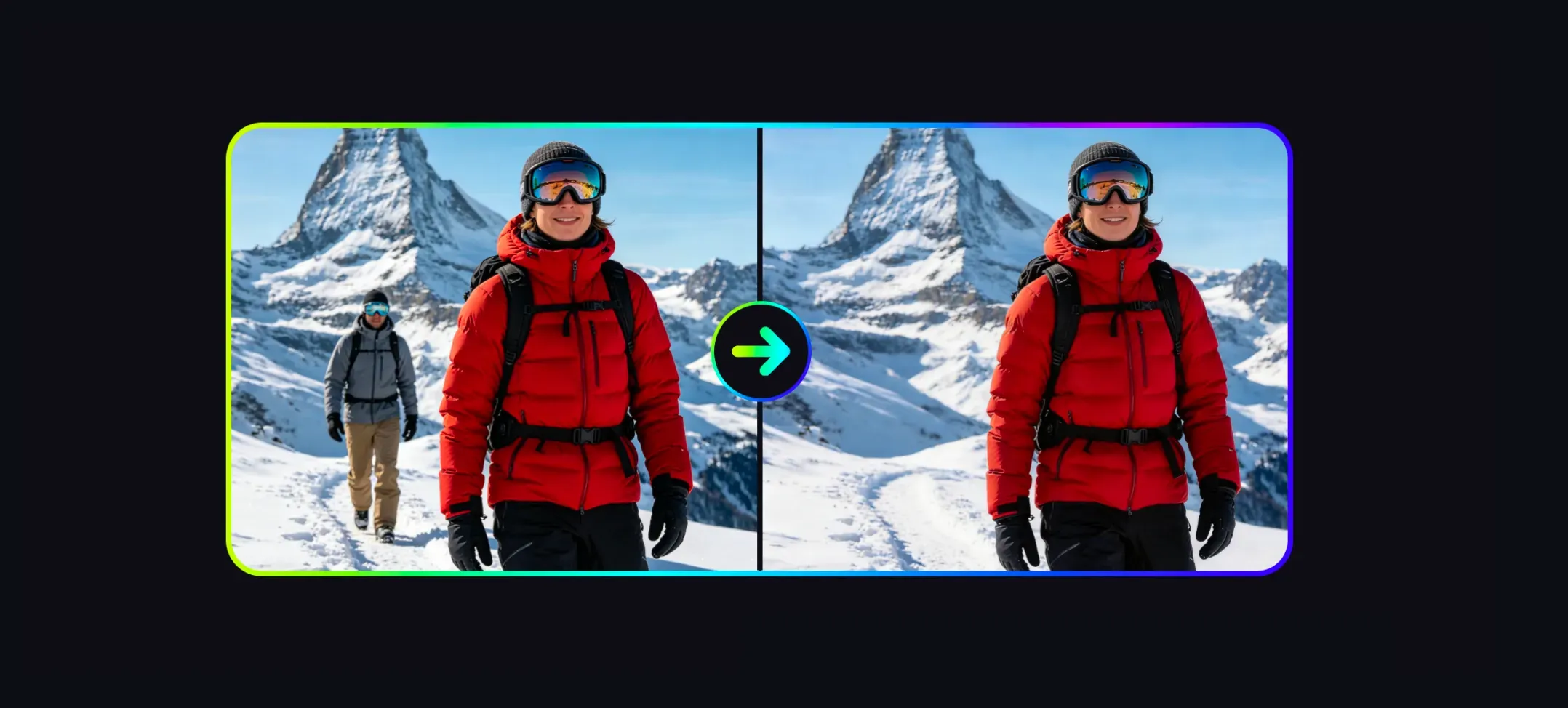
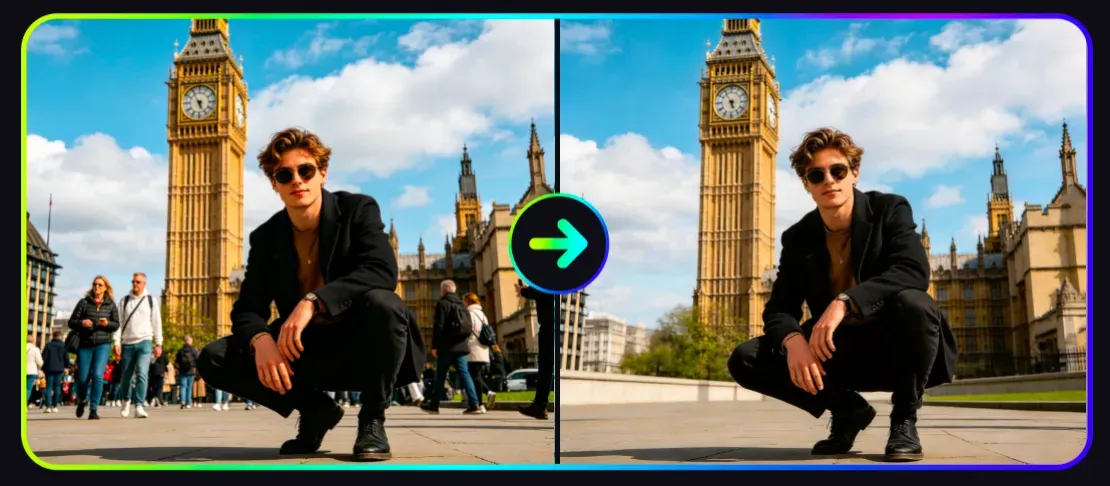
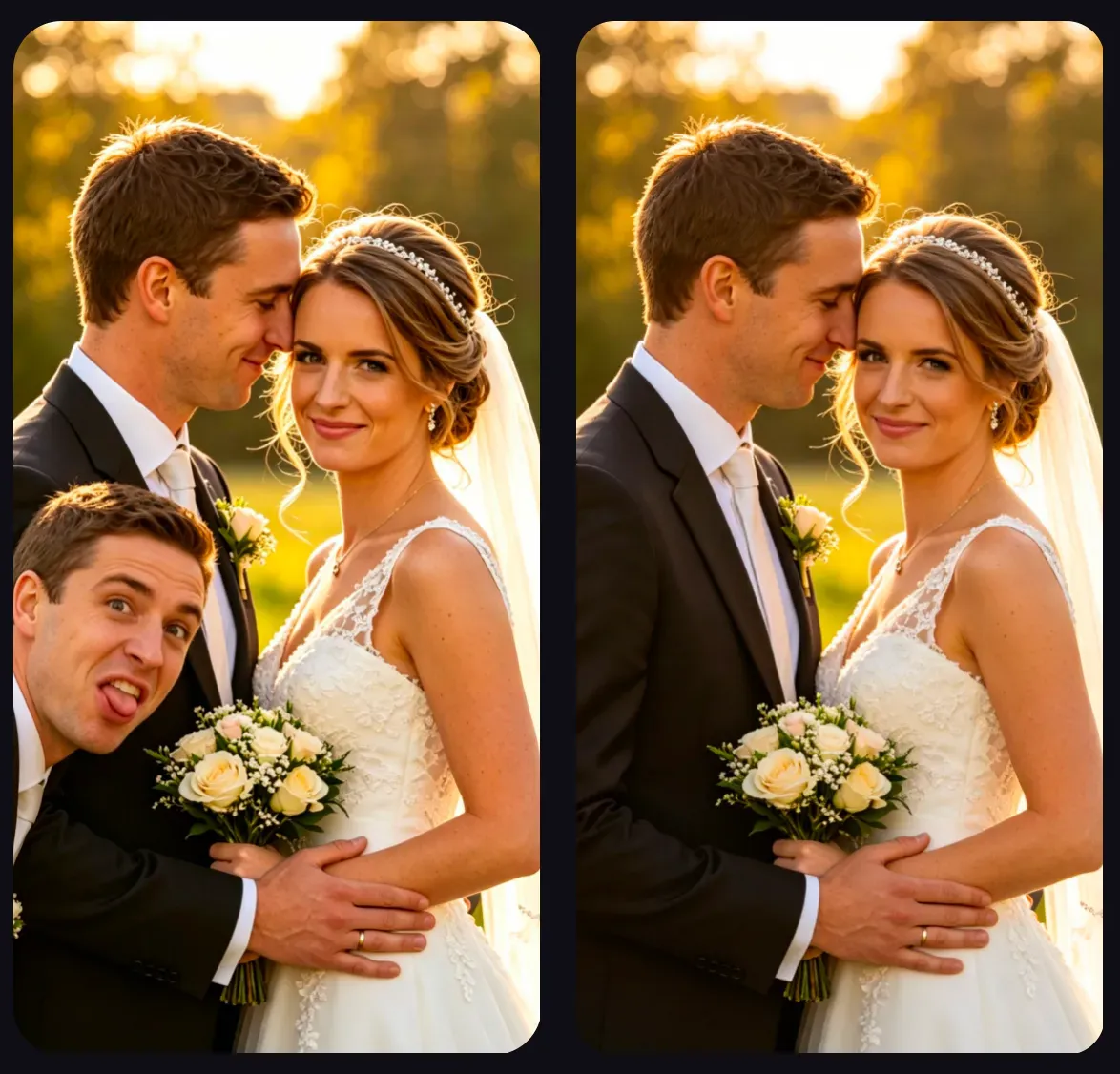
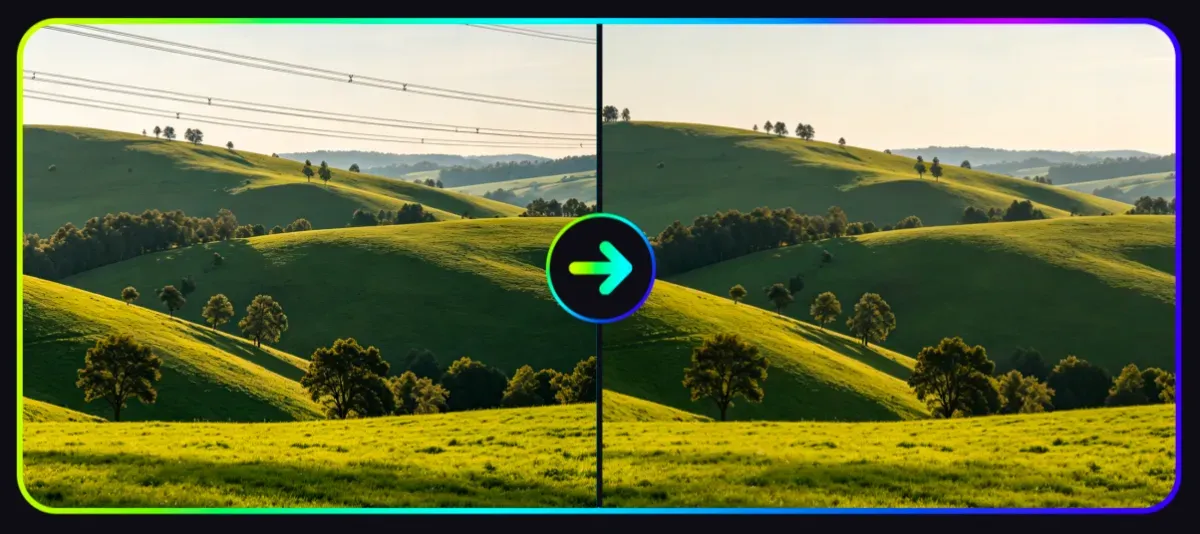
Vidoly AI Object Remover helps users erase unwanted people, tourists, photobombers, text overlays, logos, watermarks, wires, vehicles, trash cans, and other background distractions from photos. After uploading a photo, select the objects to remove, and the AI will automatically reconstruct the surrounding background to generate a cleaner image, suitable for travel photos, product images, real estate listings, social media content, and marketing materials.
Remove Unwanted Objects from Photos for Free Now
How Does the AI Object Remover Work?

How Does the AI Object Remover Work?

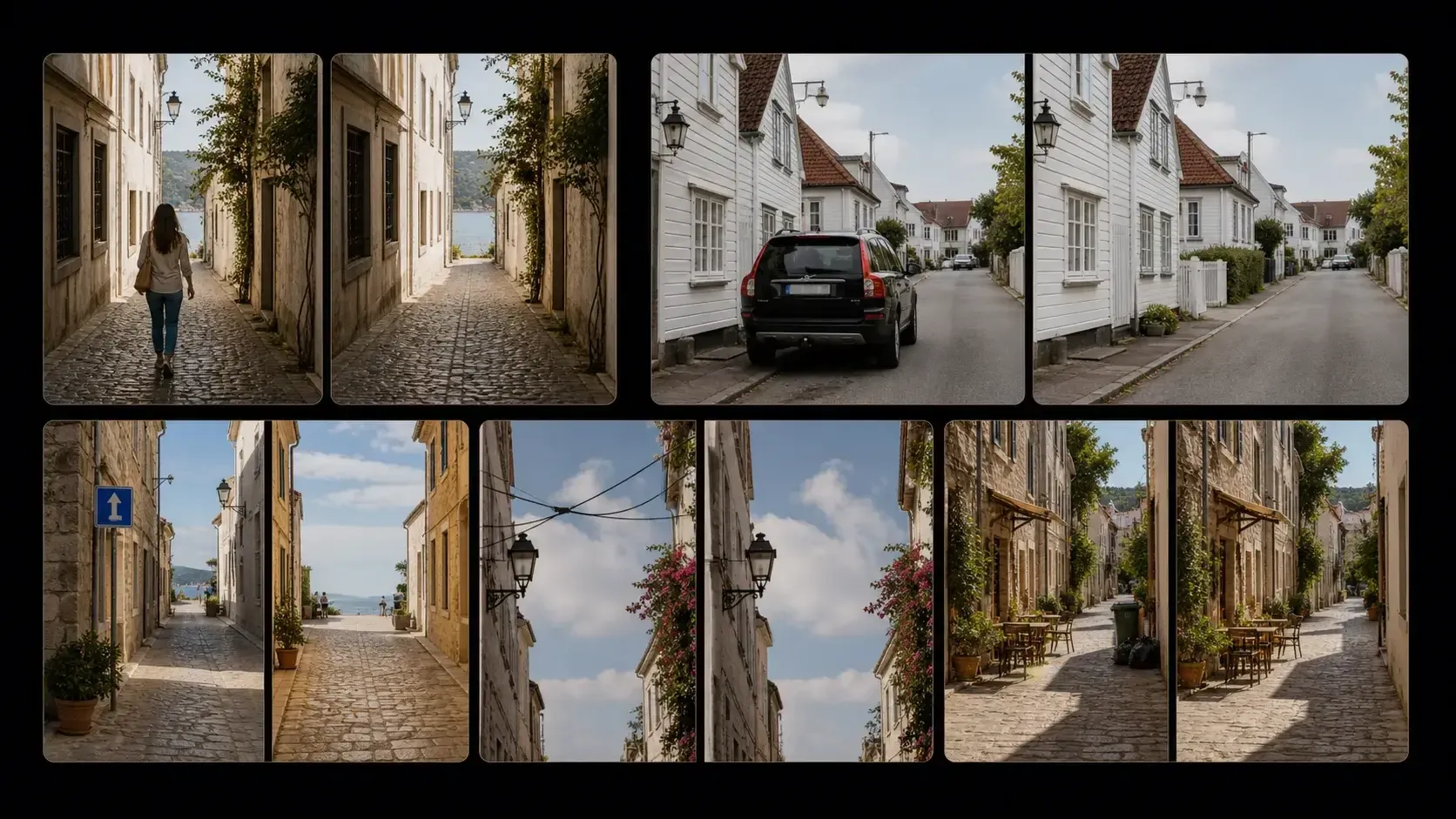
The AI Object Remover works through the coordinated technologies of object selection, image restoration, and background reconstruction. After a user marks or selects an area to remove, the AI analyzes the pixels, texture, light direction, shadows, edges, and repeating patterns around the object. Instead of simply blurring the object, it fills the removed area with new visual content that matches the surrounding scene—for example, reconstructing the sky, grass, wall texture, ground pattern, product background, or simple landscape details. The effect is usually best when the object being removed is small to medium-sized, clearly separated from the main subject, and has enough surrounding background details for the AI to reference.

What Content Can Be Removed with the AI Object Remover?

What Content Can Be Removed with the AI Object Remover?

Vidoly AI Object Remover can clear various common distractions from photos, including tourists, photobombers, background people, road signs, trash cans, parked vehicles, wires, text overlays, logos, watermarks, product props, reflections, stickers, cables, stains, and small background clutter. It is suitable for travel photography, e-commerce product images, real estate photos, portrait images, creator thumbnails, event mockups, and personal photos, preventing unwanted elements from distracting from the main subject.

Best Types of Photos for AI Object Removal

Best Types of Photos for AI Object Removal

For the clearest results, upload photos with high sharpness, high resolution, good lighting, and clear background details. The AI removal effect is better when the object to be removed does not cover faces, hands, product labels, important buildings, reflections, or complex patterns. Simple backgrounds like sky, grass, walls, ground, roads, beaches, studio backdrops, and solid product surfaces are easier to reconstruct. Crowded scenes, glass reflections, water reflections, patterned clothing, low-light photos, motion blur, or objects overlapping with the main subject may require multiple attempts or manual editing.

AI Object Remover vs. Photoshop

AI Object Remover vs. Photoshop

The AI Object Remover is more suitable for quick cleanup, early visual drafts, social media content, travel photos, e-commerce editing, and users who do not want to use cloning, masking, healing brush tools, or manual editing. Photoshop is better for editing scenarios that require final-level, pixel-perfect, or highly controllable results. Professional editors still gain stronger control when handling complex shadows, reflections, skin edges, product labels, building lines, and final print materials. A practical workflow is to first use the AI Object Remover for quick cleanup, then manually review the results, before using them for paid ads, e-commerce pages, print materials, or client-facing work.

Common Limitations of AI Object Removal

Common Limitations of AI Object Removal

AI object removal is not 100% perfect. When the object to be removed is large, in contact with the main subject, overlapping with complex textures, covering text, appearing in mirror reflections, or casting strong shadows, the result may look blurry, distorted, or inconsistent. Extra care must be taken with watermarks, logos, and brand identities. The AI may remove visible marks from an image, but users may only edit images they own or have authorization to modify. Removing copyright notices, creator signatures, or ownership marks from unauthorized images may violate platform rules or legal rights. For best results, remove one object at a time, use clear photos, carefully check edges, and regenerate if the filled area looks unnatural.

Popular Use Cases for the AI Object Remover

Popular Use Cases for the AI Object Remover

Popular Use Cases for the AI Object Remover

AI Watermark and Object Removal Tips for Creator Workflows

AI Watermark and Object Removal Tips for Creator Workflows

Vidoly AI Remover is designed for one-click cleanup and replacement workflows. Users do not need to manually paint over objects—just select the removal task, upload the image, and the AI will automatically detect target elements and reconstruct the missing background.

How to Use Vidoly AI Object Remover

1

Select the Appropriate Removal Task

First, choose the target removal tool based on the content to clean, such as watermark removal, text removal, background person removal, logo removal, object removal, or AI-generated image cleanup.

2

Upload the Image to Clean

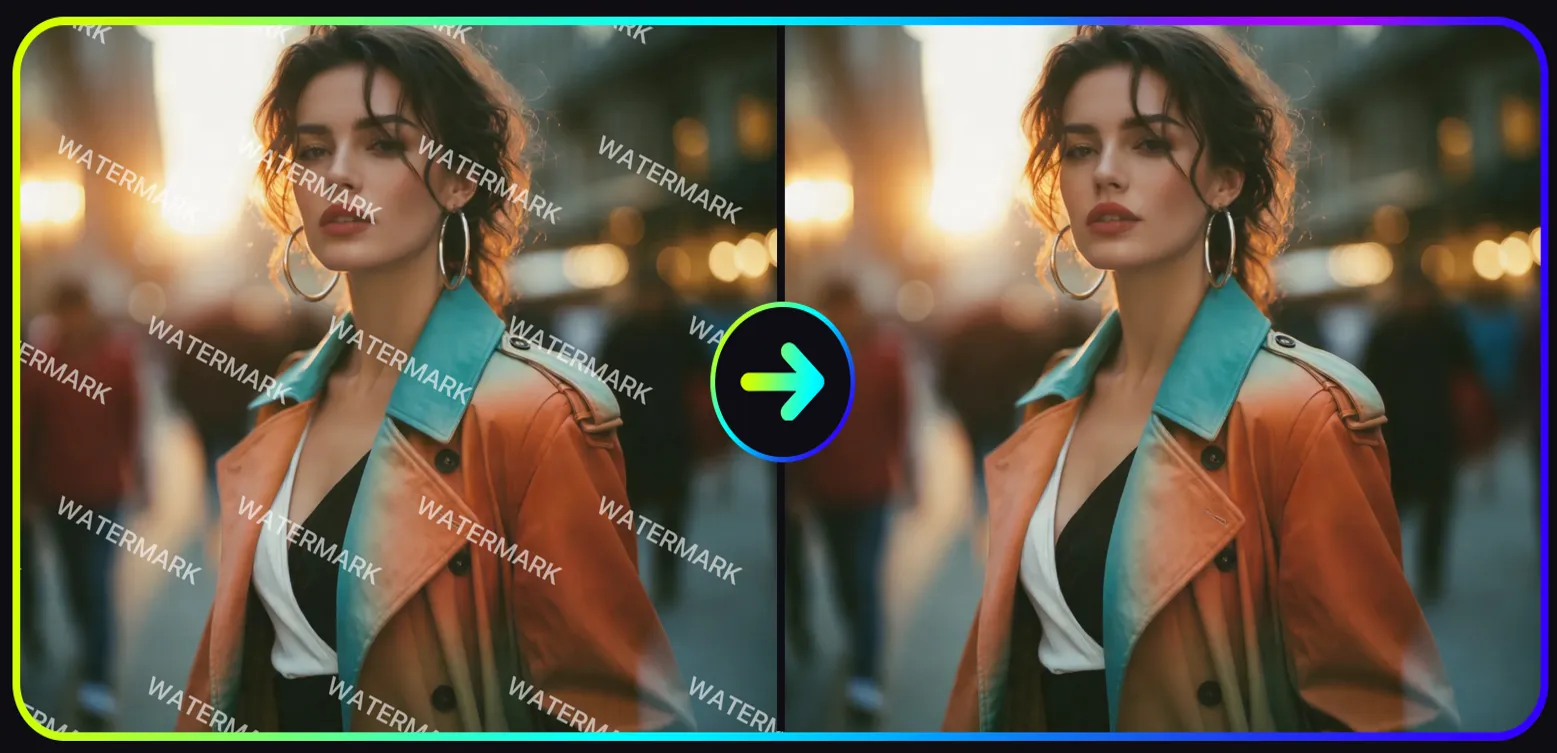
Use a clear image and ensure unwanted elements are visible. For AI watermarks generated by tools like Kling, Jimeng, or Gemini, upload the exported image directly, and Vidoly will detect visible marks, surrounding textures, and background context.

3

Let the AI Automatically Detect and Remove Target Areas

Vidoly will automatically analyze the image, identify unwanted visual elements, and replace the area with reconstructed background details. It uses nearby colors, lighting, edges, and texture patterns to make the cleaned area blend naturally with the original image.

4

Review the Reconstructed Background

Check the results for blurriness, repeating patterns, broken lines, residual shadows, or mismatched lighting. Complex backgrounds like water, glass, hair, grass, patterned fabric, and grainy AI video frames may require regeneration for clearer results.

5

Download the Cleaned Image

Save the final image after reviewing the removed areas. If used for commercial, social media, e-commerce, or client-facing scenarios, ensure the image belongs to you and that removing logos, text, or watermarks does not violate copyright, platform rules, or brand rights.

FAQ

Can AI Remove People from Photos?

AI can reconstruct the covered background through image restoration, removing partially visible watermarks, logos, text overlays, and corner marks. The effect is usually better when the watermark is small, the background is not too complex, and the paint covers the full watermark edge. Users may only remove watermarks from images they own, have editing authorization for, or that are allowed to be modified by relevant platform rules.

Can AI Remove Text from Images?

Yes. AI can remove subtitles, marks, labels, and text overlays by reconstructing the surrounding area of the image. Small text on complex textures may require additional review.

Can AI Remove Watermarks from Photos?

AI can remove visible watermarks from images, but users may only edit images they own or have authorization to modify. Do not remove copyright marks, creator signatures, or ownership statements from unauthorized images.

Can AI Remove Logos or Brand Marks from Images?

AI can remove logos, stickers, labels, and brand marks from many images, but use caution for commercial use. Review permissions, trademark rights, product accuracy, and platform rules before publishing.

Why Do Removed Areas Sometimes Look Blurry?

Blurriness usually

What photos work best for AI object removal?

Clear, high-resolution photos with good lighting and enough visible background detail work best. Simple backgrounds such as sky, walls, grass, floors, beaches, and studio backdrops are easier to reconstruct.

Can I use AI Object Remover for product photos?

Yes. Ecommerce sellers can remove props, clutter, cables, dust, labels, or small background distractions. Always check product shape, packaging, labels, and shadows before using the image on product pages or ads.

Is AI Object Remover better than Photoshop?

AI is faster for quick cleanup and everyday edits. Photoshop gives more control for professional retouching, complex backgrounds, print assets, and client-facing final images.

Can AI remove objects from complex backgrounds?

It can work on many complex scenes, but results vary. Crowds, reflections, patterned surfaces, architecture lines, transparent objects, and overlapping subjects are harder than simple backgrounds.

Can I use the edited image commercially?

You can use AI-cleaned images for creative drafts, social posts, ecommerce visuals, and marketing mockups if you have the right to use the original image. Before paid use, check licensing, trademarks, image quality, and whether the edit misrepresents the original content.

Is AI object removal free to use?

Vidoly AI provides free credits for users to try AI object removal online. Additional usage, premium features, or higher-resolution exports may require a paid plan.

How do I remove a Kling, Jimeng, or Gemini watermark more cleanly?

Use the dedicated watermark removal workflow and upload the image with the mark clearly visible. Results are usually better when the watermark is small, separated from important subject details, and placed over a background with enough surrounding texture for AI reconstruction.

Does Vidoly require manual brushing to remove objects?

No. Vidoly AI Remover is designed around a one-click removal and replacement workflow. Users choose the removal task, upload an image, and let the AI detect the unwanted element and reconstruct the background automatically.

À lire aussi