



Suppresseur de texte IA

Suppresseur de texte IA

Importer une image
photo_camera

Importer une image

Prompt
28/2000
Licence commerciale incluse
Plus dans
Use AI to remove text from images

Use AI to remove text from images

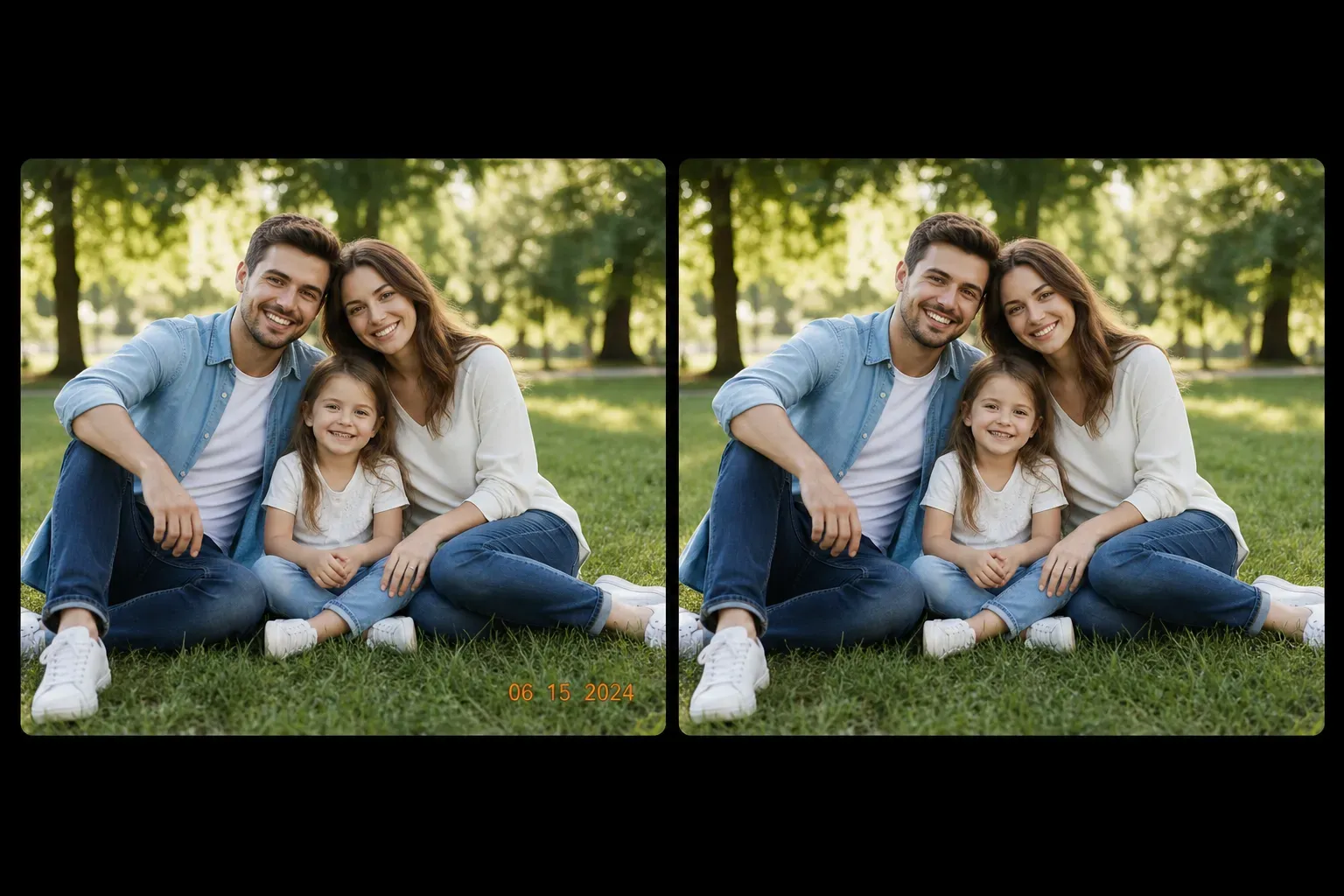
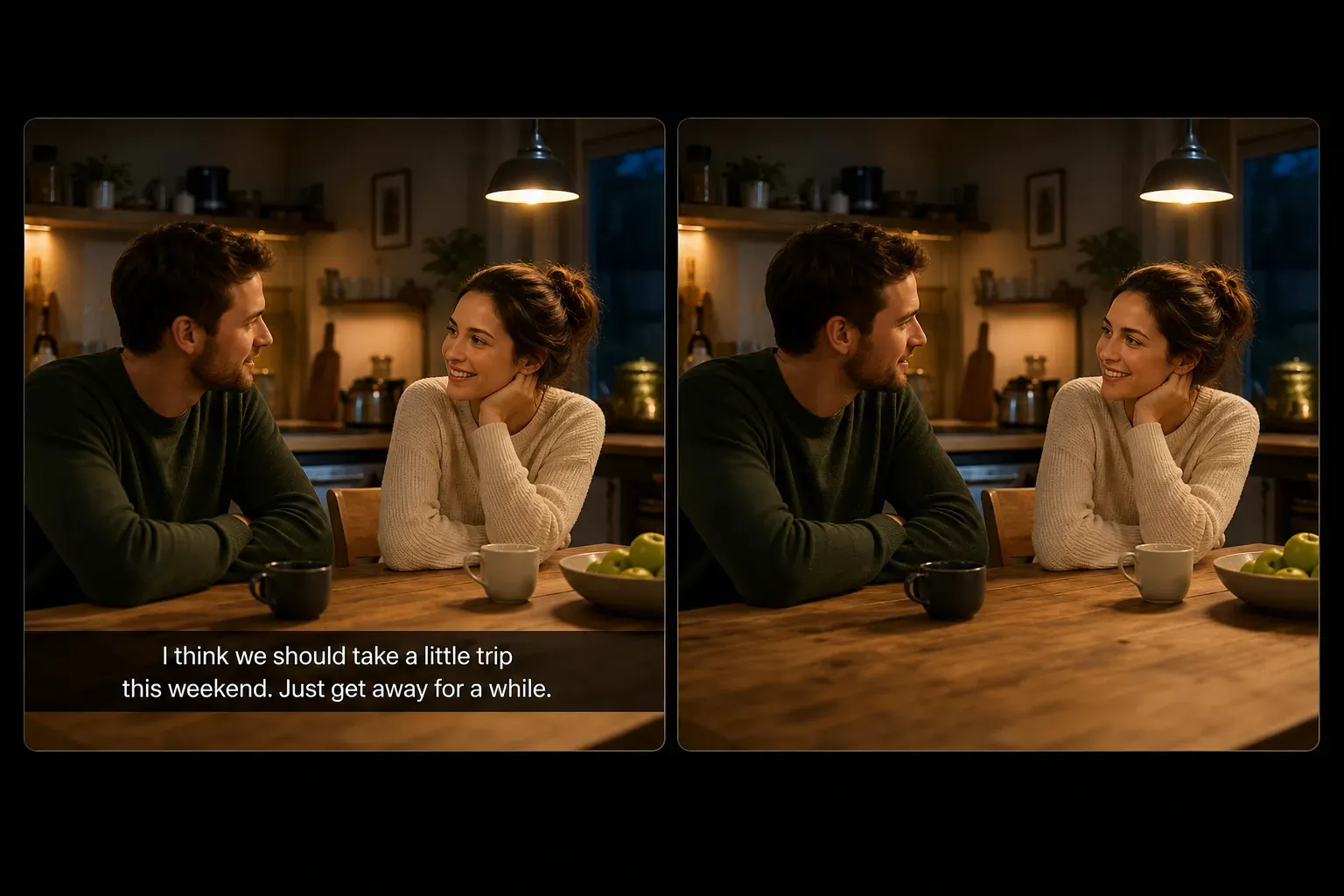
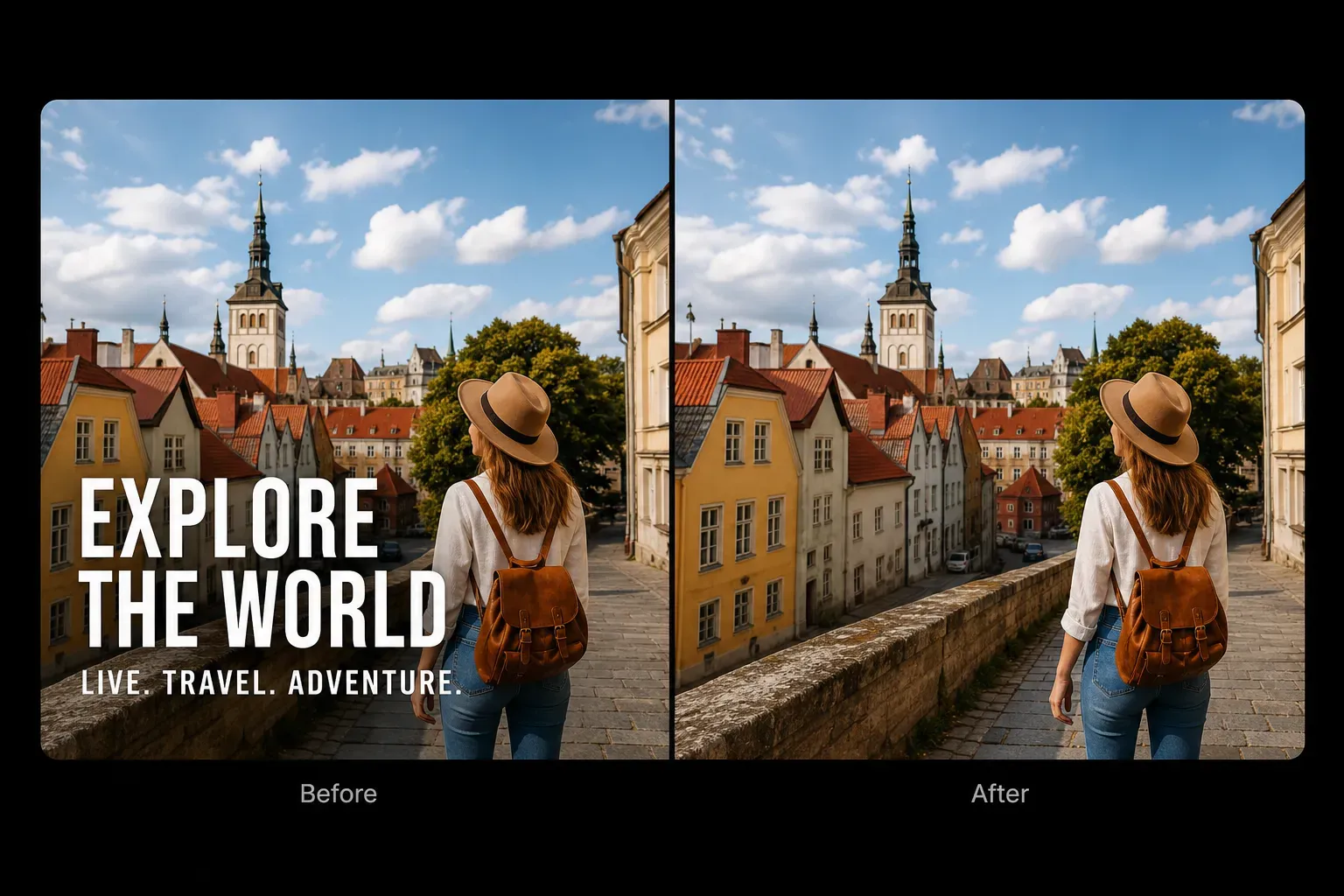
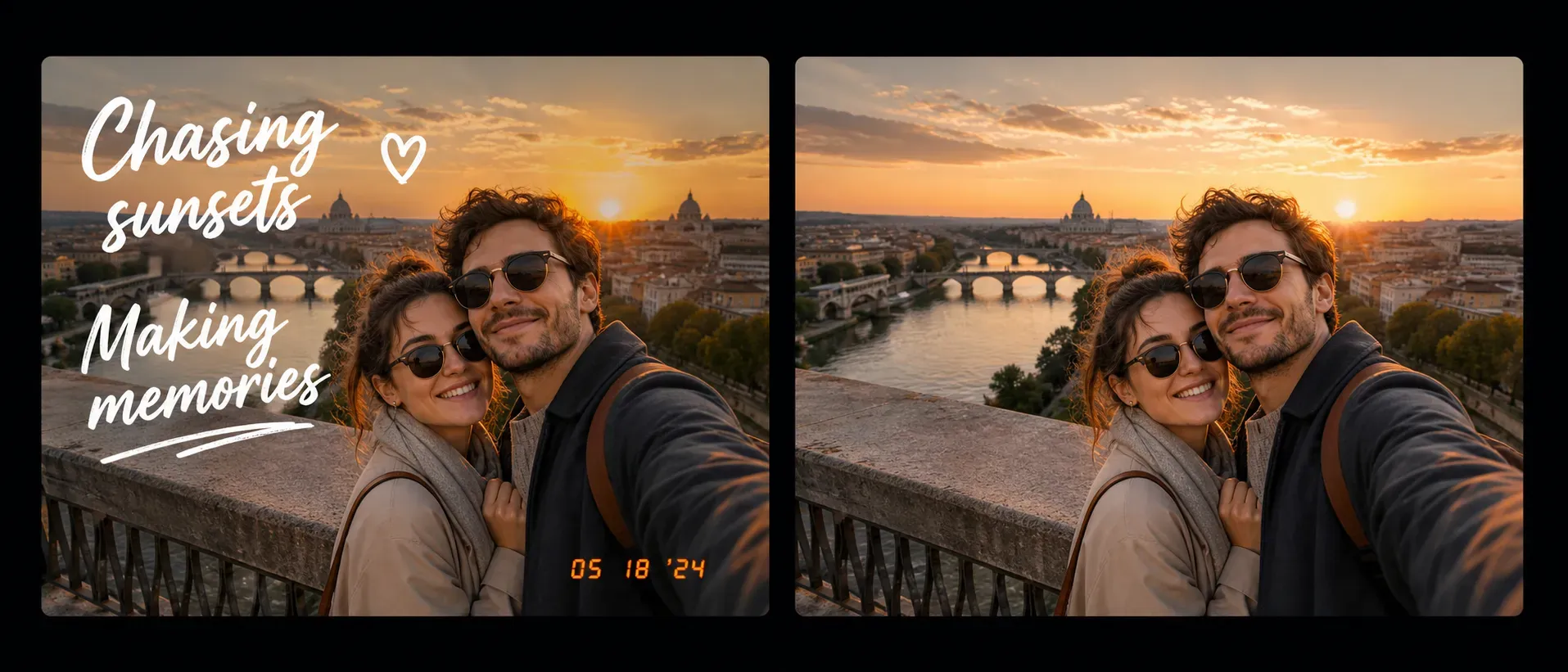
Vidoly AI Text Remover is specially developed to eliminate visible text from photos and image assets, helping you remove text overlays, subtitles, captions, date stamps, tags, logos, stickers, and excess text. This AI technology leverages image restoration and background reconstruction techniques, filling content by utilizing the texture, color, lighting, and edge details surrounding the selected text area—no manual work with clone stamps or healing brushes is required.

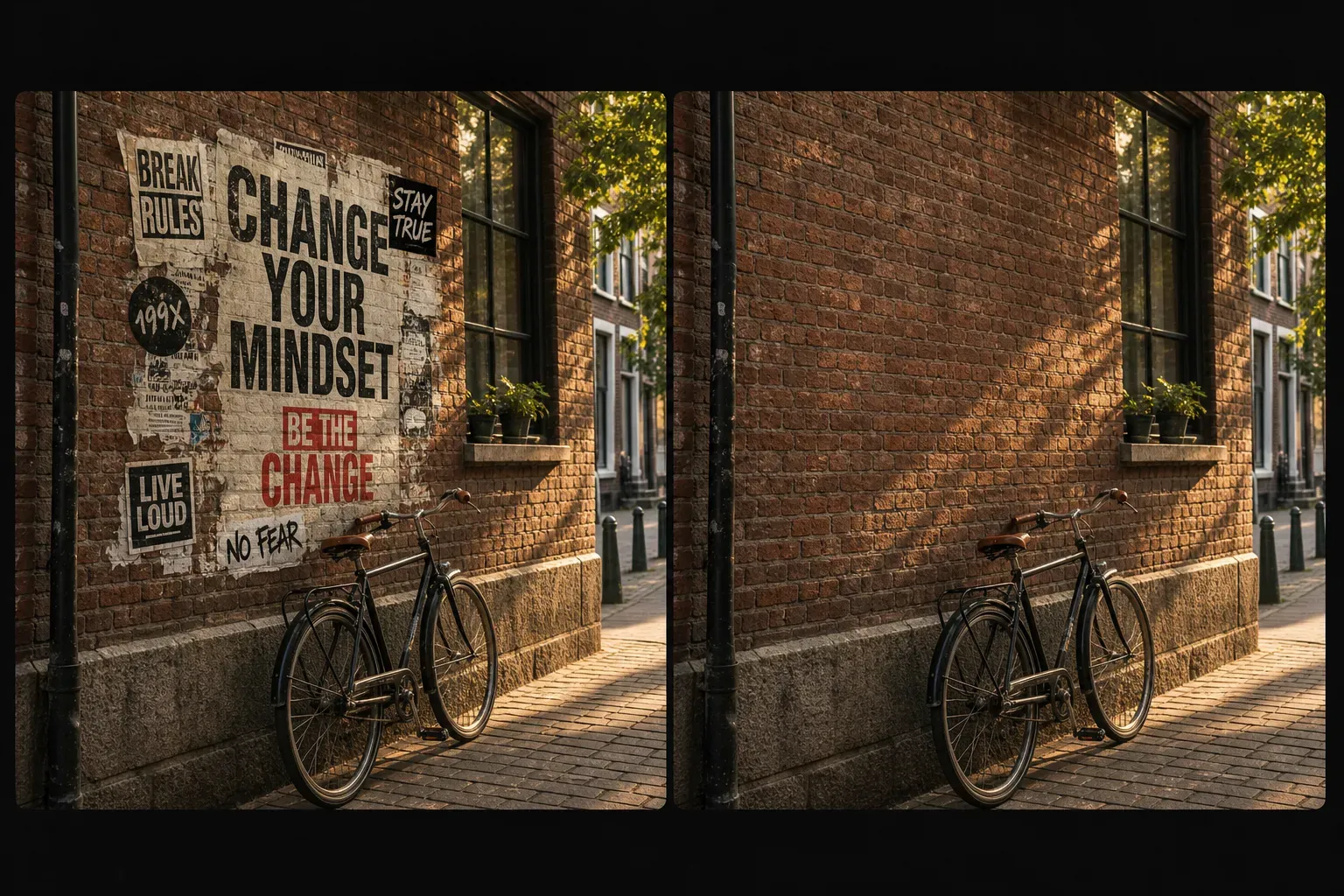
How does the AI Text Remover work?

How does the AI Text Remover work?

The AI Text Remover identifies selected text regions by segmenting the image, then uses image restoration technology to reconstruct the areas covered by text. The AI estimates missing pixels based on nearby colors, shadows, patterns, object edges, and background textures. Text on simple backgrounds like skies, walls, desktops, clothing, paper, or blurry areas is usually easier to remove.

What types of text can the AI remove?

What types of text can the AI remove?

The tool can remove a wide range of common text elements, including captions, subtitles, date stamps, meme text, poster text, social media overlays, tag text, sticker text, logo text, and excess text added during editing. Removal effectiveness depends on the text’s size, transparency, font weight, position, and the background beneath it. Small text on simple backgrounds is easier to remove than large text covering faces, hands, product labels, or complex patterns.

Best image types for text removal

Best image types for text removal

The AI Text Remover works best when text is clearly separated from the main subject and the surrounding background has enough visual details for reconstruction. Suitable input images include photos where text appears on skies, walls, floors, blurry backgrounds, fabrics, grass, desktops, or simple product surfaces. Low-resolution images, heavily compressed files, images with harsh shadows, or text covering critical details may result in blurry or distorted processed areas.

AI Text Remover vs. AI Watermark Remover

AI Text Remover vs. AI Watermark Remover

The AI Text Remover focuses on visible text, captions, subtitles, logos, and text overlays, while the AI Watermark Remover targets ownership marks, logos, transparent stamps, and brand image overlays. Some watermarks include text, but user intent differs: text removal is typically used to clean up captions or excess text, whereas watermark removal is often related to licensing, ownership, or platform requirements.

AI Text Remover vs. manual Photoshop editing

AI Text Remover vs. manual Photoshop editing

The AI may struggle with text covering faces, hands, product packaging, brand labels, fine print details, reflections, or complex textures. Large text, repeating text patterns, and transparent text overlays may leave blurry or flawed reconstruction traces. For best results, carefully select the full text area and use the clearest available version of the image.

Only use the AI Text Remover on images you own, shot yourself, have permission to edit, or have authorization to modify. Removing text may alter the image’s meaning, remove source attributions, hide context, or distort product and legal information. Always review results carefully before publishing, especially for e-commerce images, brand assets, documents, screenshots, or commercial photos.

Only use the AI Text Remover on images you own, shot yourself, have permission to edit, or have authorization to modify. Removing text may alter the image’s meaning, remove source attributions, hide context, or distort product and legal information. Always review results carefully before publishing, especially for e-commerce images, brand assets, documents, screenshots, or commercial photos.

仅在您拥有所有权、自行拍摄、获得授权或拥有编辑权限的图片上使用AI文字清除工具。清除文字可能会改变图片含义、移除来源标注、隐藏上下文或歪曲产品和法律信息。发布前请仔细检查结果,尤其是电商图片、品牌素材、文档、截图或商用图片。

How to use Vidoly AI Text Remover?

1

Upload your image

Select a photo or image asset with excess text, captions, subtitles, tags, or date stamps.

2

Select the text area

Carefully mark the full text area, including letters, shadows, outlines, and background boxes (if applicable).

3

Let the AI reconstruct the background

The AI will analyze nearby colors, edges, lighting, and textures, then fill the selected area with reconstructed image details.

4

Check the processed image

Verify that the restored area looks natural. Large text or complex backgrounds may require additional editing or a clearer image.

5

Download the result

Save the processed image for authorized personal use, design, e-commerce, social media, or internal creative purposes.

FAQ

What is Vidoly AI Text Remover?

Vidoly AI Text Remover is an image editing tool designed to remove visible text from images by reconstructing the background behind selected text, eliminating captions, subtitles, date stamps, tags, logos, and text overlays.

Can the AI remove captions from photos?

Yes. If the surrounding background has enough details for reconstruction, the AI can remove many captions from photos. Captions on skies, walls, floors, or blurry backgrounds are usually easier to process than those covering faces or complex patterns.

Can the AI remove subtitles from images?

Yes. The AI Text Remover can eliminate subtitles from static images or video screenshots. Clearer results are typically achieved when subtitles appear on a simple image background.

Can I remove date stamps from photos?

Yes. Removing date stamps is a common use case. Results are better if the date stamp is small and located on a simple area with no fine details, such as a wall, floor, sky, grass, or clothing.

Can the AI remove text from product images?

Yes, provided you own the product image or have editing authorization. Exercise caution if text appears on packaging, labels, ingredient lists, or legal disclaimers, as removing this text could be misleading for the product.

Can the AI remove text from memes?

Yes. Text can be removed from memes as long as it does not cover critical subjects. Large text on memes covering faces, hands, or complex backgrounds may leave noticeable reconstruction flaws.

Is the AI Text Remover the same as an AI Watermark Remover?

No. The AI Text Remover focuses on explanatory text, subtitles, date stamps, marks, and visible text. The AI Watermark Remover targets ownership marks, logo overlays, transparent stamps, and brand image identifiers.

Is the AI Text Remover the same as OCR?

No. OCR extracts text from images for reading or copying, while the AI Text Remover edits images by removing visible text and reconstructing the background behind it.

Why does the processed area look blurry?

Blurriness usually occurs because the text covers details the AI cannot accurately infer. Faces, hands, product labels, reflective surfaces, fine fabrics, and low-resolution images are more prone to blurriness or distortion.

Which images are best for text removal?

High-resolution images with small to medium text on simple backgrounds work best. Avoid heavily compressed images, dark photos, and cases where text covers important subject details.

Can I remove text from screenshots?

Yes, but results depend on the screenshot content. UI elements, charts, documents, and dense text blocks may be harder to reconstruct due to complex background structures and high text density.

Can I use edited images for commercial purposes?

Edited images may only be used for commercial purposes if you own the image or have the correct authorization and licenses. Carefully review the final image, especially if text removal affects product information, copyright ownership, or legal context.