Doooot Image Generator New Version: Custom Dot Layouts, Colors, Counts, and Striped Patterns
 By Marvin/1 min read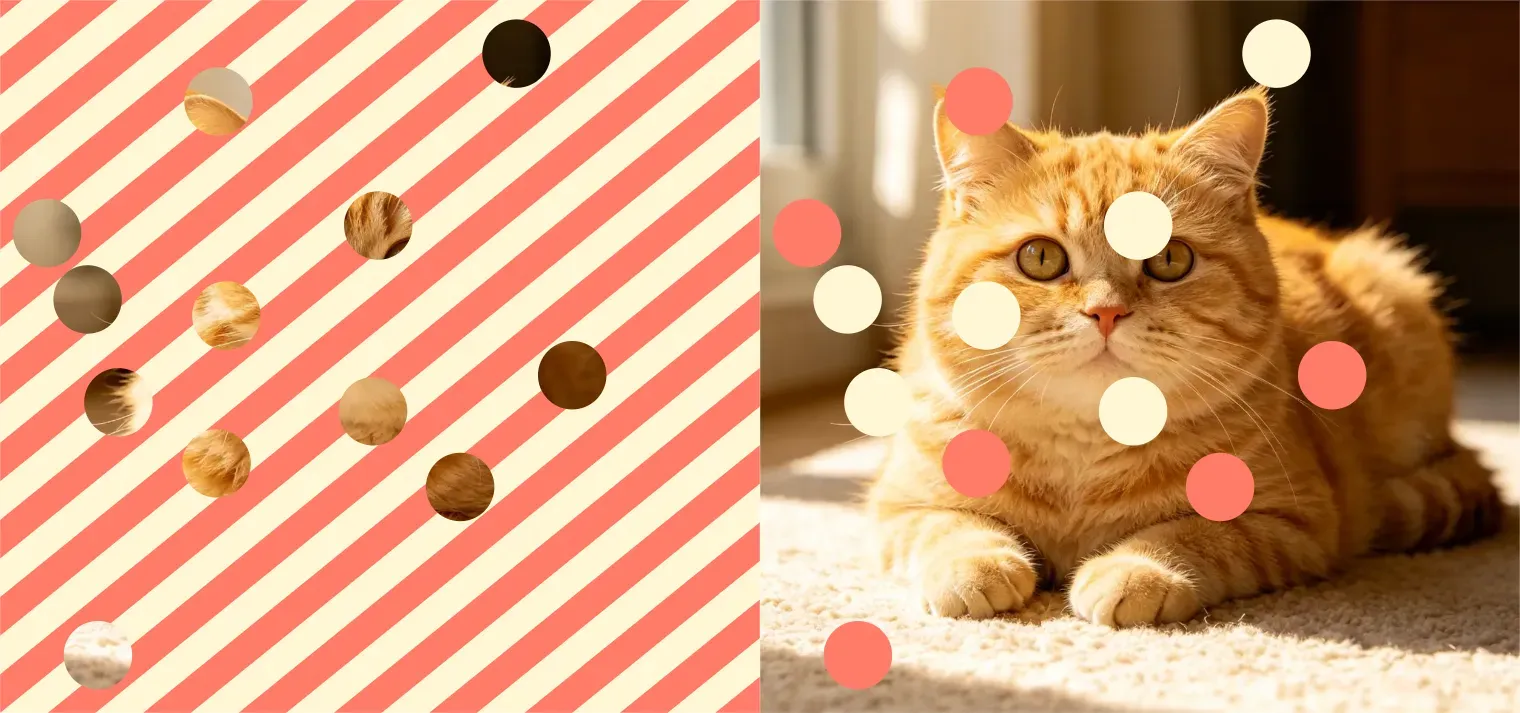
Vidoly's Doooot Image Generator lets creators turn ordinary images into playful dotted and striped visuals for social posts, thumbnails, campaign graphics, and design experiments. The new version adds more control over where dots appear, how many dots are used, which colors are applied, and how stripe patterns are layered into the final image.
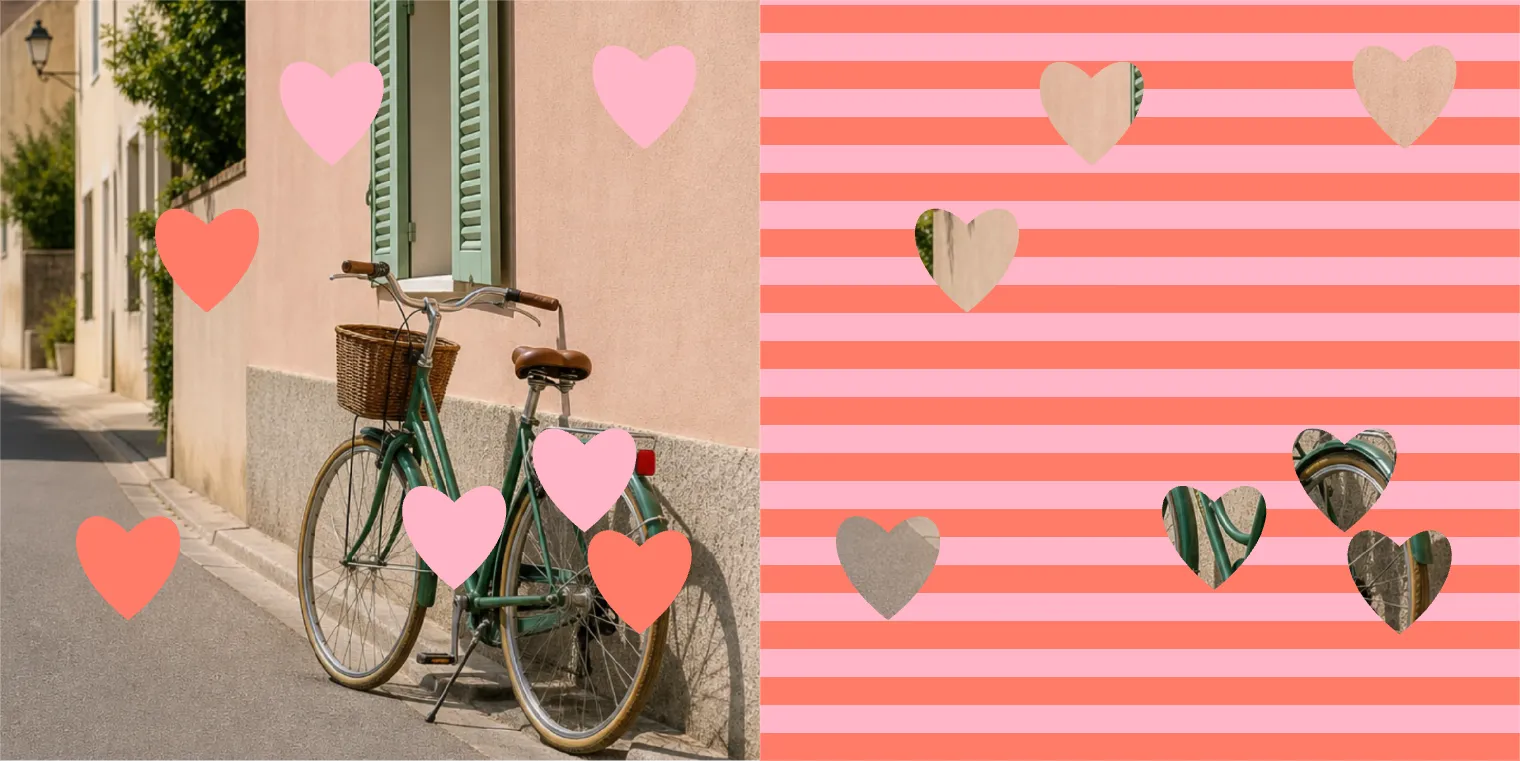
New Pattern Examples
The update is designed for creators who want a stronger visual style without rebuilding the image manually in a design tool. You can split the original photo with a patterned area, place dots in a specific direction, tune the dot color and quantity, or add a striped layer with precise color, angle, and width controls.
What's New in the Doooot Image Generator Update?
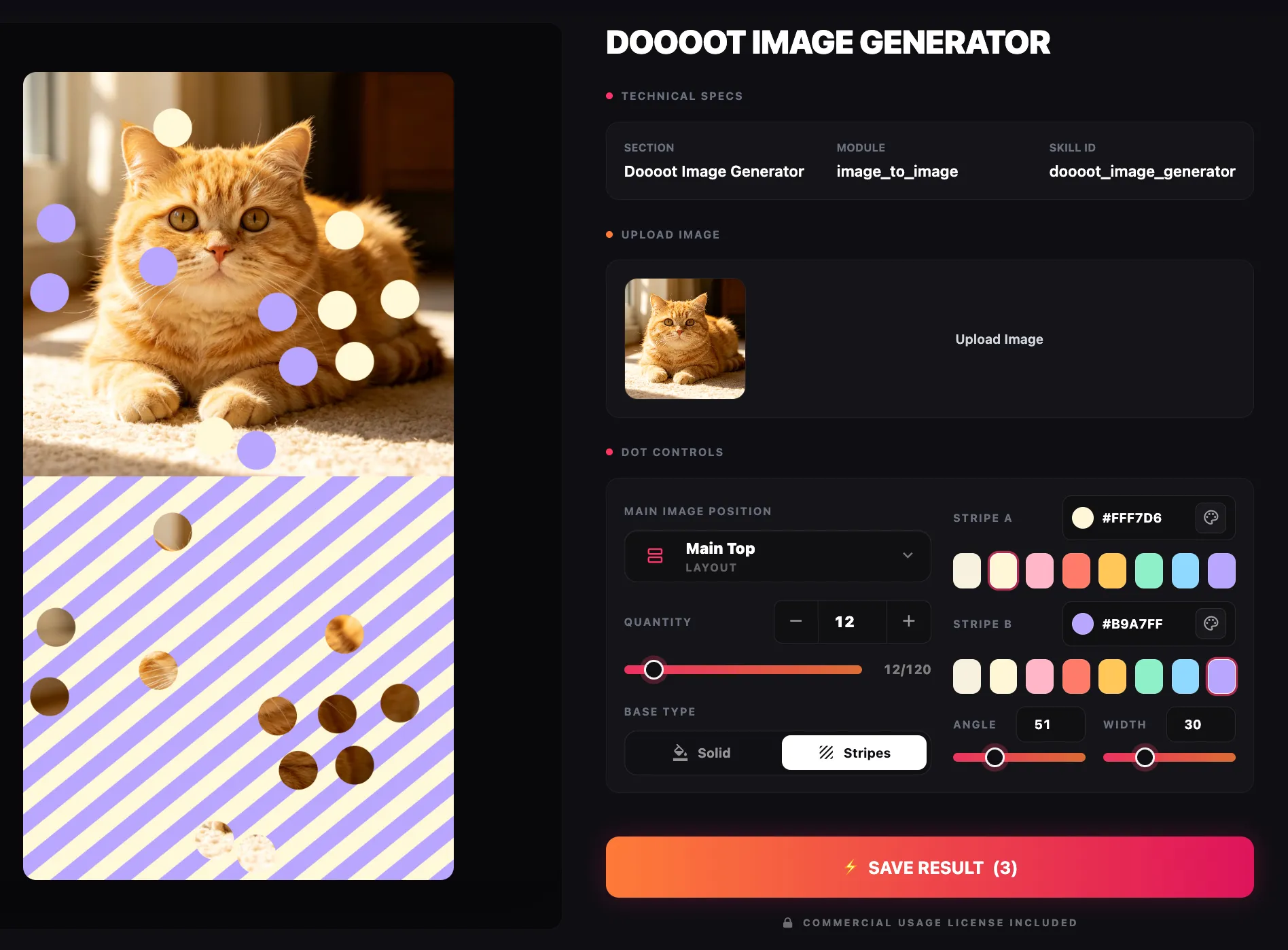
Four Dot Layout Directions
Choose whether the dot decoration appears on the top, bottom, left, or right side of the image. This makes it easier to preserve the subject area while adding a clear decorative frame.
Custom Dot Colors
Pick dot colors that fit a product photo, outfit, brand campaign, holiday theme, or social media series. A controlled palette usually looks more intentional than random decoration.
Adjustable Dot Quantity
Use fewer dots for a cleaner editorial look or more dots for a lively pop-art style. Dot count control helps balance visual energy with subject clarity.
Custom Stripe Controls
Add stripes with two selected colors, then tune the stripe angle and stripe width. This supports soft background accents, bold poster effects, and graphic campaign visuals.
Why This Update Matters for Creators
Pattern effects are useful when a plain image needs a stronger visual hook. Influencers can use dotted layouts to make product posts feel more designed, ecommerce teams can create seasonal campaign graphics, and social creators can turn screenshots or lifestyle photos into more shareable visuals.
The main advantage of the new version is control. Instead of accepting one fixed dotted effect, creators can decide where the decoration appears and how much attention it should take from the original image.
How to Use Doooot Image Generator
- Upload the image you want to redesign, such as a product photo, portrait, travel image, or social post visual.
- Select the dot layout direction: top, bottom, left, or right, depending on where your subject and empty space are located.
- Choose the dot color and set the number of dots to control whether the result feels minimal, playful, or bold.
- Enable stripes if you want a stronger graphic style, then customize the two stripe colors, angle, and stripe width.
- Preview the result, refine the settings, and download the final image for social content, campaign graphics, or design tests.
Best Ways to Use the New Doooot Effects
Social Media Covers
Add dots or stripes to make a photo feel more like a designed post, carousel cover, or campaign teaser.
Product Recommendation Images
Use controlled dot colors to match the product palette and make affiliate or influencer recommendation visuals more recognizable.
Seasonal Campaign Graphics
Build summer, holiday, back-to-school, or launch visuals by combining a clean image with color-specific dots and stripe patterns.
Design Exploration
Quickly test whether a layout works better with a top accent, side decoration, dense dotted treatment, or striped graphic layer.
What to Check Before Publishing
Dot and stripe effects work best when the original image has enough empty space or a clear subject area. If the image is already crowded, use fewer dots, place the layout away from faces or product details, and choose stripe colors with enough contrast but not so much intensity that the subject becomes hard to read.
For product images, review whether dots or stripes cover labels, logos, faces, hands, or key item details. The best result usually keeps the decorative pattern around the content instead of hiding the content.
FAQ
Can I choose where the dots appear?
Yes. The new version supports top, bottom, left, and right layouts, so you can place the dot effect around the strongest part of the image.
Can I customize the dot color?
Yes. You can choose dot colors that match a brand palette, product color, outfit, season, or visual theme.
Can I control how many dots are added?
Yes. A lower dot count creates a cleaner effect, while a higher dot count makes the image feel more playful and graphic.
What stripe settings can I change?
You can customize two stripe colors, stripe angle, and stripe width. This makes the stripe effect useful for subtle backgrounds or bold poster-style graphics.
What images work best?
Images with a clear subject and some open background space usually work best. Busy images may need fewer dots or softer stripe colors.
Is this useful for influencer or ecommerce content?
Yes. Dotted and striped graphics can help product recommendation images, campaign covers, and social posts feel more intentional without manual design work.
Ready to try the new version? Open Vidoly Doooot Image Generator, upload an image, and test dot layouts, custom colors, dot quantity, and stripe controls in one workflow.