
Text-to-Video vs Image-to-Video: What’s the Difference and Which Should You Use?
 By Vivi/1 min read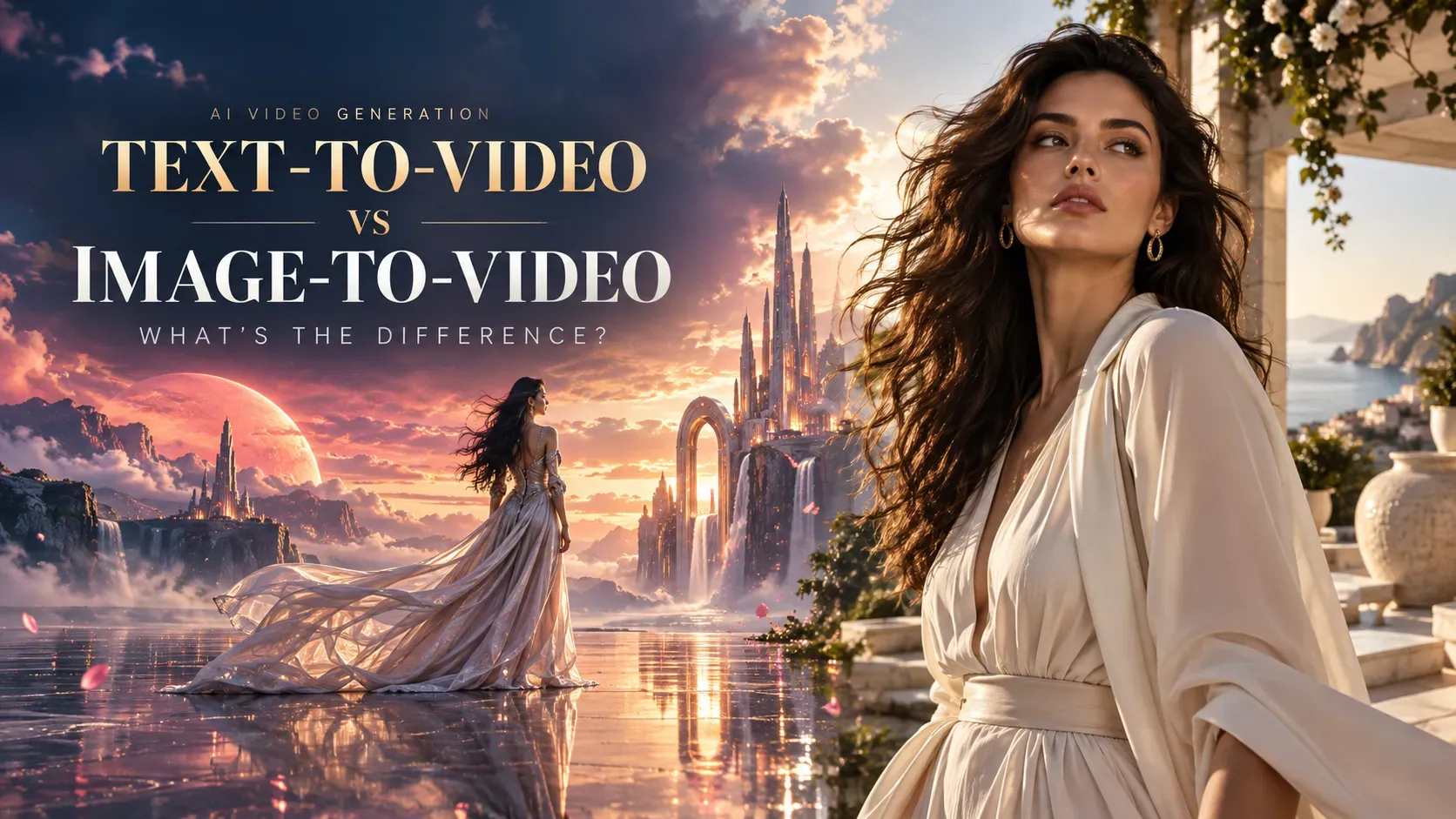
Learn the difference between text-to-video and image-to-video AI, when to use each workflow, how to write better prompts, and how to create videos with Vidoly.
Text-to-Video vs Image-to-Video: What's the Difference and Which Should You Use?
Text-to-video starts with an idea. Image-to-video starts with an existing visual. Choosing between them depends on what assets you already have—and how much control you need over the starting frame:
Text-to-video creates the scene from scratch.
Image-to-video brings an existing visual to life.
Vidoly provides both text-to-video and image-to-video workflows, allowing creators to switch between prompt-based generation and image-based animation depending on the project.
This guide explains how text-to-video AI and image-to-video AI work, when to use each approach, how to write prompts for both, and how to combine them into an end-to-end AI video creation workflow.
Text-to-Video vs Image-to-Video: Quick Answer
In simple terms, text-to-video starts with an idea, while image-to-video starts with an existing visual.
Use Text-to-Video when you do not have a reference image, need to explore new concepts from scratch, or want to generate cinematic background B-roll.
Use Image-to-Video when you already have a product photo, character design, or artwork, and want to add motion while keeping the main subject recognizable.
Use Both when you want to build a complete campaign—using text-to-video to explore creative visual ideas and image-to-video to animate your core brand assets.
What Is the Difference Between Text-to-Video and Image-to-Video?
To choose the right workflow, it helps to understand how each approach handles visual inputs and motion generation.
What Is Text-to-Video?
Text-to-video is an idea-first generation process. You describe a scene in words, and the AI model synthesizes every visual detail—including subjects, background elements, lighting, camera angles, and motion—from your description.
• Primary Input: Text Prompt
• Core Function: Synthesizes new visual scenes from text
• Visual Anchor: None (The AI creates the visual elements)
For example, entering a prompt like:
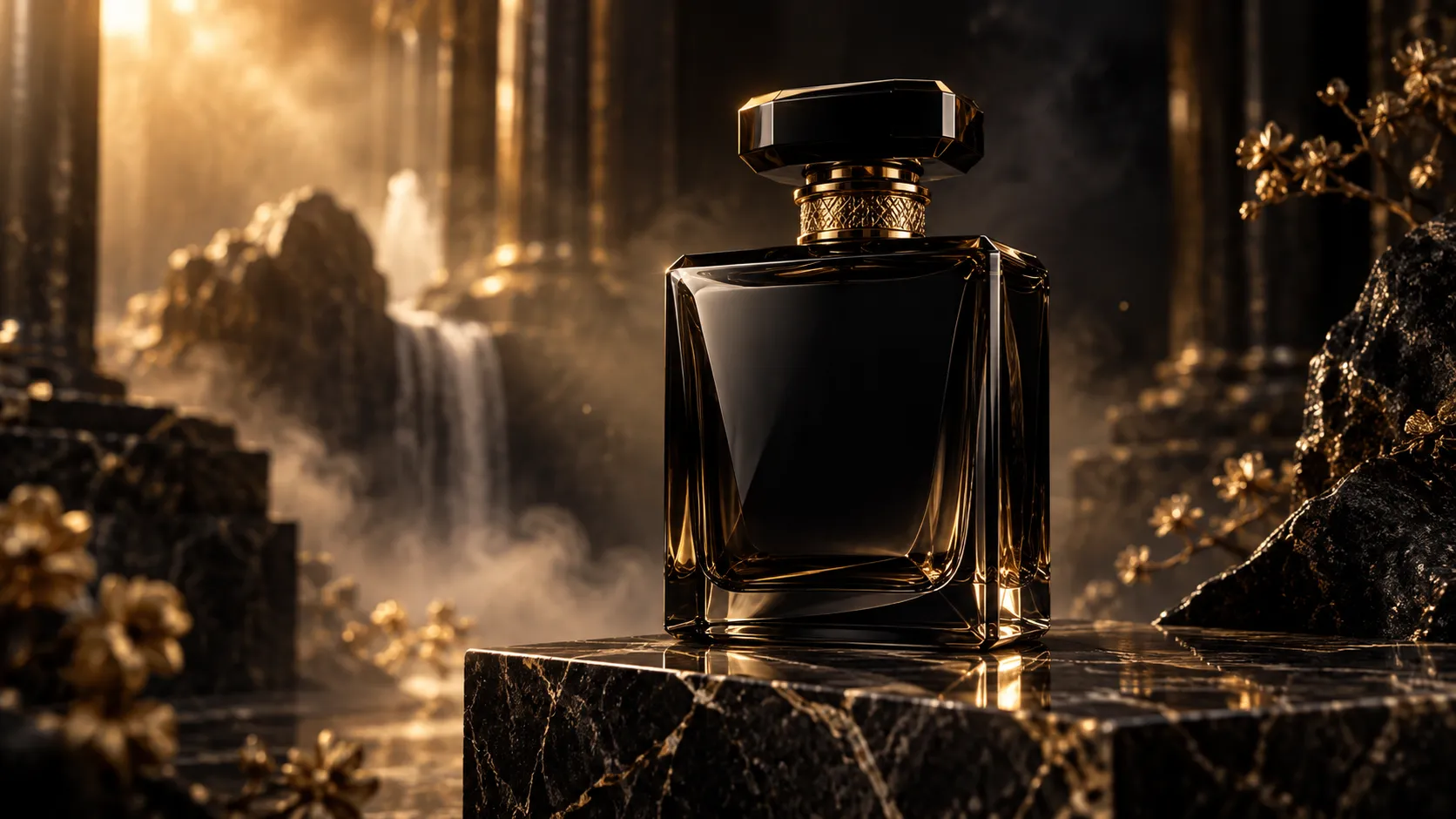
"A cinematic close-up of a luxury perfume bottle on a black marble table, soft golden light, slow camera push-in."
instructs the AI model to construct the bottle design, background atmosphere, and camera motion entirely from your written instructions to generate video from text.
What Is Image-to-Video?
Image-to-video is an asset-first generation process. You upload an existing photograph alongside a text prompt that describes how the scene should move. The uploaded photo provides the visual starting point, helping the model preserve the subject, composition, colors, and overall appearance while generating motion.
If you are looking for how to turn an image into a video with AI, image-to-video generation is the most direct workflow: upload the image, describe the desired motion, and generate a video clip.
• Primary Input: Source Image + Motion Description
• Core Function: Adds motion to an existing image
• Visual Anchor: Strong (The source image provides the visual starting point)
For example, if you upload a real product photo of a skincare bottle and add the prompt:
"Slow camera push-in, subtle light reflections sweeping across the glass, gentle background atmospheric mist."
the photo to video AI works to keep your product recognizable while animating the lighting, camera angle, and background environment.
Text-to-Video vs Image-to-Video: Key Differences
The following comparison breaks down how text-to-video and image-to-video handle common production requirements:
| Feature Dimension | Text-to-Video Workflow | Image-to-Video Workflow |
|---|---|---|
| Starting Input | Text prompt only | Uploaded image + motion prompt |
| Creation Approach | Idea-First (Creates visuals from words) | Asset-First (Directs motion on existing assets) |
| Creative Freedom | Higher creative freedom | Medium-High (Guided by source image composition) |
| Visual Consistency | Varies between separate generations | Stronger visual reference from the source image |
| Product & Logo Preservation | Less predictable | Stronger visual reference from the source image |
| Commercial Video Use | Conceptual ads, B-roll, creative scenes | Product ads, catalog assets, campaign visuals |
| Creative Use Cases | Concept brainstorming, new scenes | Animating 2D artwork, portraits, avatars |
| Prompt Focus | Scene setup, subject, lighting, environment | Primary motion, camera path, visual constraints |
When Should You Use Text-to-Video?
The text-to-video workflow is ideal when you want to create scenes without relying on pre-existing photography or physical production setup.
1. When You Don't Have a Source Image
If you have a clear video idea but no existing photos, footage, or graphics, text-to-video provides an immediate starting point. You can describe the scene you envision and let the AI generate the initial visual.
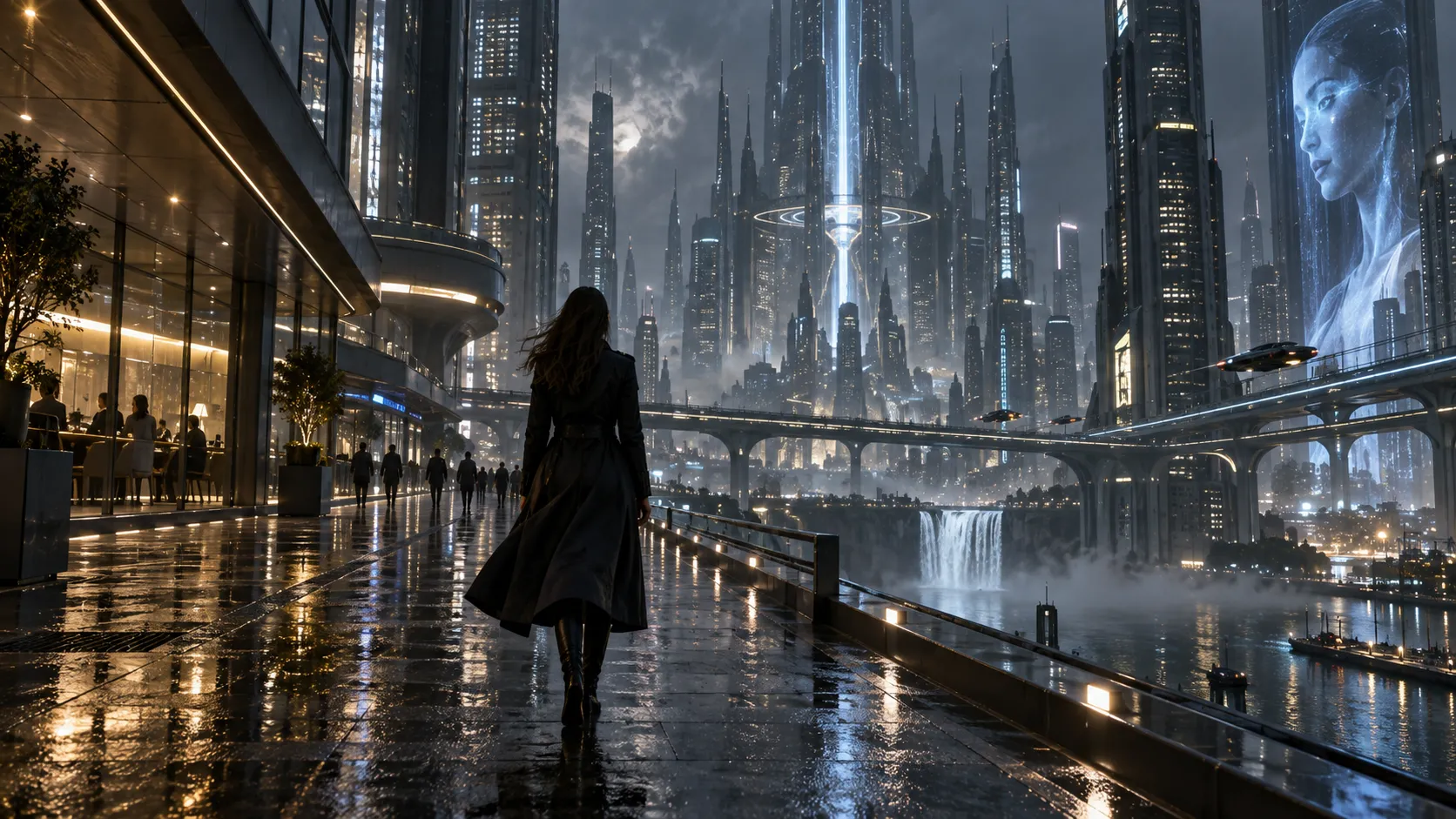
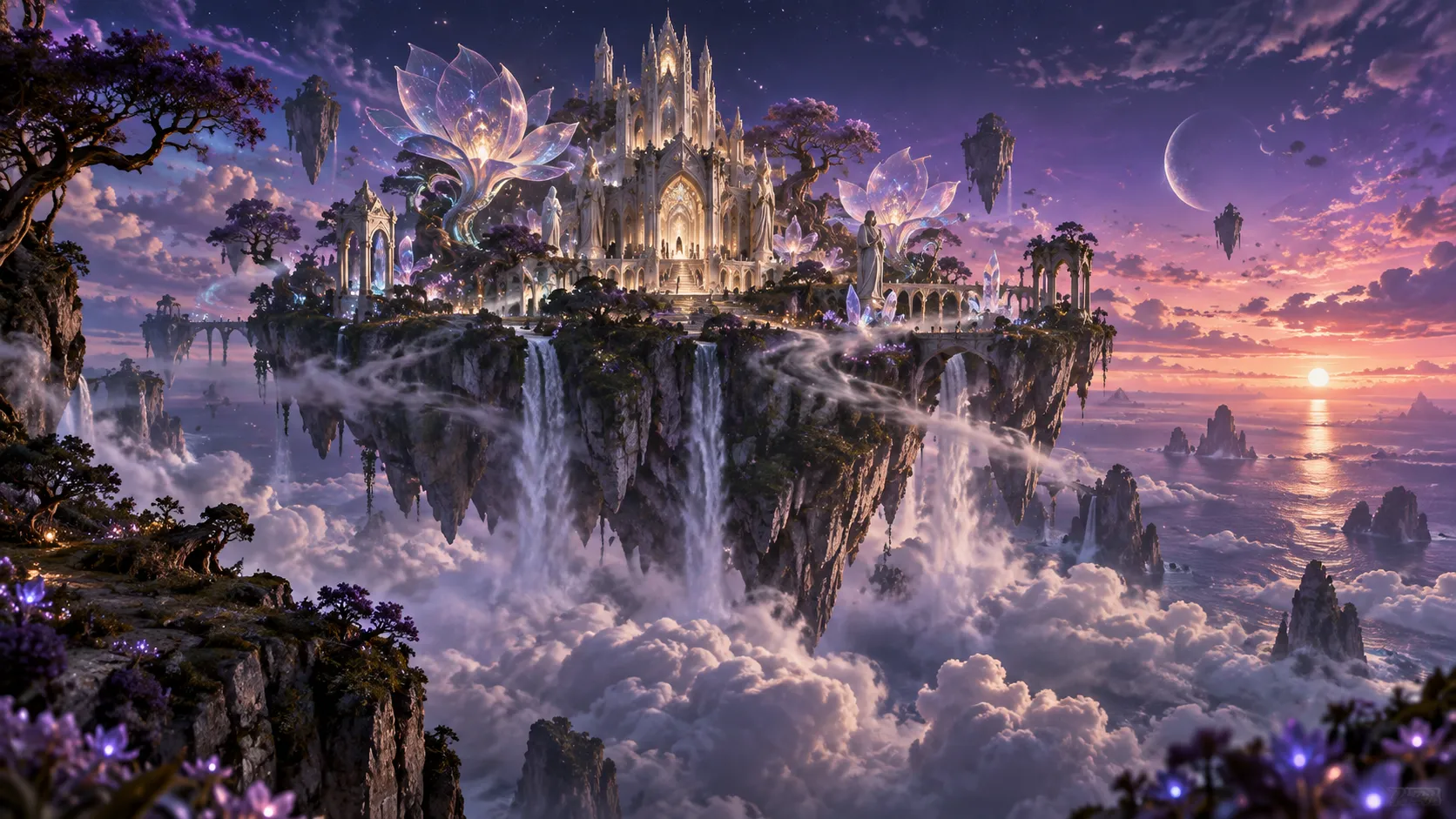
2. When You Need Completely New, Fantasy, or Sci-Fi Scenes
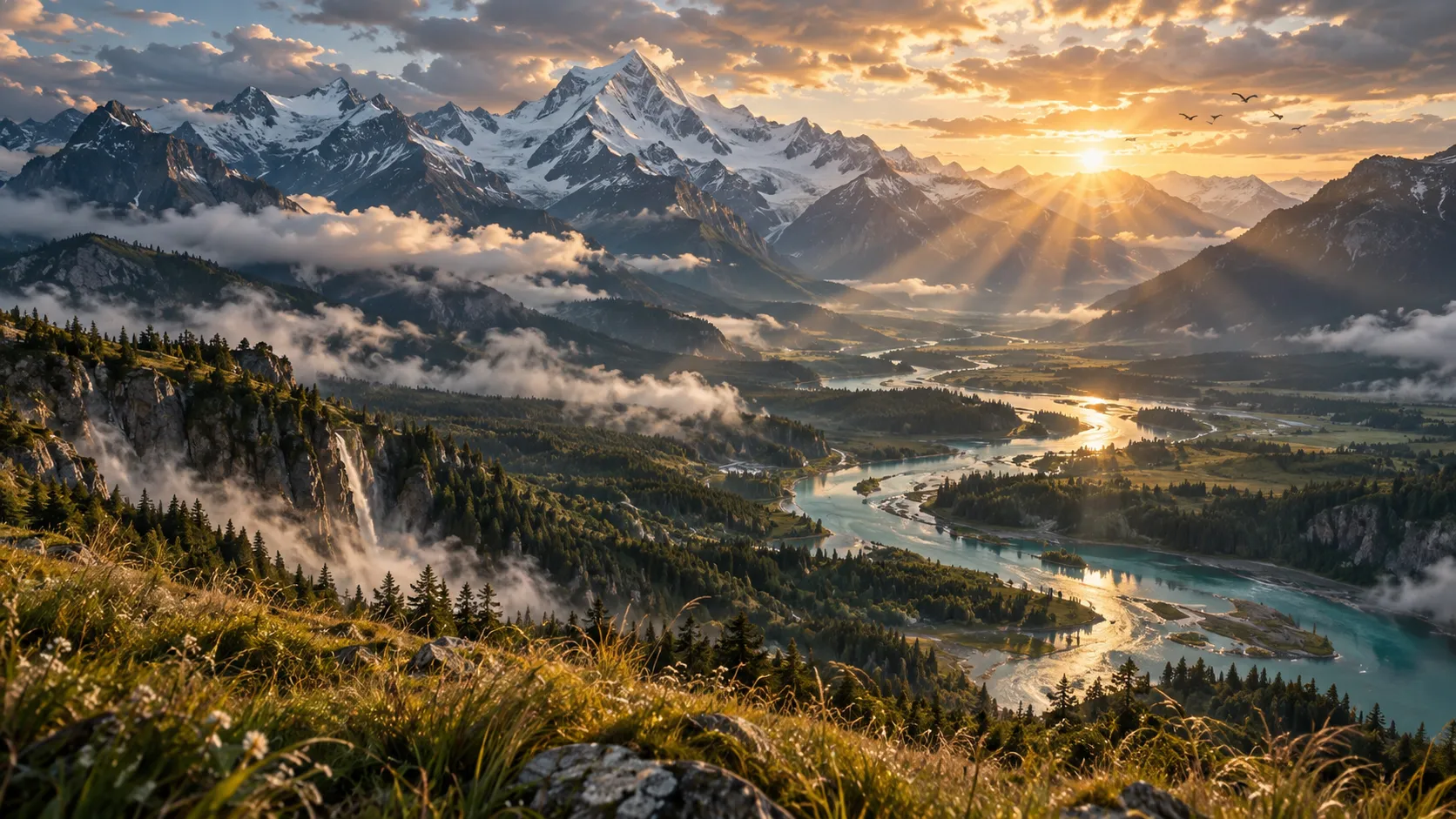
Generating stylized or impossible environments—such as futuristic cities, historical scenes, or abstract visual effects—is a natural strength of prompt-driven generation. Because the model is not limited by a reference image, it can synthesize wide scenes and atmospheric moods freely.
3. When You Need Cinematic B-Roll for Social Media
Content creators on TikTok, Instagram Reels, and YouTube often need supplementary visual footage (B-roll) to support voiceovers or storytelling. Using an AI text-to-video generator allows editors to create atmospheric background clips, transitions, and mood shots directly from text prompts.
4. When You Want to Explore Ideas Quickly
In the early stages of a project, rapid visual testing helps define creative direction. Text-based video generation allows creative teams to test different lighting styles, lens perspectives, and scene compositions in minutes by adjusting text prompt descriptions.
When Should You Use Image-to-Video?
The image-to-video workflow is built for projects where keeping an existing subject, product, or character recognizable is essential. For ecommerce and marketing teams, image-to-video is particularly useful when you already have approved product photography or campaign assets.
1. Product Photos → E-Commerce Video Ads
For e-commerce brands, maintaining packaging details and product appearance across video ads is critical. Text-to-video models can sometimes alter logos or product shapes. Using an AI image-to-video generator allows ecommerce and marketing teams to upload studio photos of skincare bottles, footwear, or electronics and add subtle camera motion for social media ad campaigns.
2. Existing Marketing Assets → Short Video Clips
Brands often hold libraries of high-resolution catalog photos, campaign images, and lifestyle photography. Image-to-video allows marketing teams to convert static images into video clips for social media feeds without organizing new video shoots.
3. AI-Generated Artwork → Dynamic Video Clips
Digital creators who design static art using image generators can use image-to-video as a natural second step. Uploading 2D artwork allows artists to introduce camera motion, shifting light, or drifting background elements while maintaining the original composition.
4. Character Images → Animated Portraits
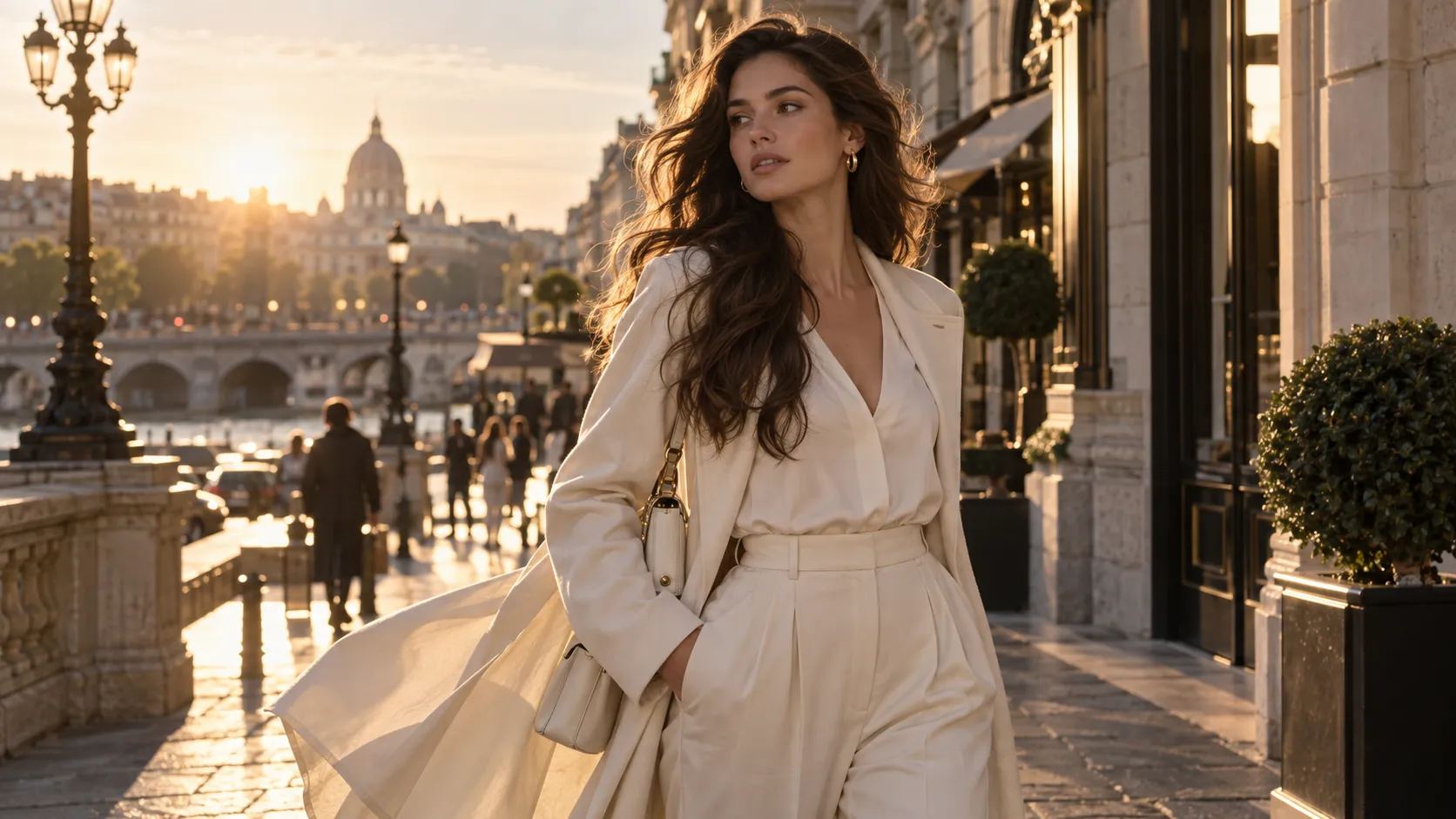
When working with portraits, character designs, or digital avatars, image-to-video tools can introduce subtle natural motion—such as gentle eye blinks, soft hair movement, or minor head turns—without losing character identity.
How to Write Prompts for Text-to-Video and Image-to-Video
Prompting techniques differ depending on whether you are building a new scene or adding motion to an existing photo.
Text-to-Video Prompt Framework
Because a text-to-video prompt builds the entire scene, your description should clearly define seven key elements:
• Subject: The primary focus (e.g., An astronaut).
• Action: What the subject is doing (e.g., walking slowly).
• Environment: Surrounding setting (e.g., on a glowing neon desert planet).
• Lighting: Quality and direction of light (e.g., soft purple ambient light).
• Camera: Lens framing and movement (e.g., low-angle tracking shot).
• Style: Rendering aesthetic (e.g., photorealistic, 35mm film grain).
• Pacing: Speed of motion (e.g., slow cinematic pacing).
Example Prompt:
"A cinematic close-up of an astronaut walking slowly on a glowing neon desert planet, soft purple ambient light, low-angle tracking shot, photorealistic, 35mm film grain, slow cinematic pacing."
Image-to-Video Motion Prompt Framework
When writing an image-to-video prompt, the AI already sees your subject and composition. Focus your instructions strictly on motion, environmental physics, camera movement, and constraints:
• Subject: The core element from your image (e.g., The central skincare bottle).
• Primary Motion: Main movement in frame (e.g., slow camera push-in).
• Camera Movement: Lens path (e.g., smooth directional tracking).
• Environment: Background motion (e.g., subtle atmospheric mist drifting).
• Lighting: Shifting reflections (e.g., soft morning sunlight sweeping across the glass).
• Constraints: Visual boundaries (e.g., keep the bottle centered, sharp, and stable).
Tip: Focus on One Primary Motion: Keeping your prompt focused on one dominant motion (such as a camera push-in) can make results easier to control, especially when the source photo contains detailed packaging, text, or complex product geometry.
Example Motion Prompt:
"Slow camera push-in toward the central skincare bottle, subtle morning sunlight sweeping across the background, realistic reflections on the glass, keep the bottle centered, sharp, and stable."
Can You Use Text-to-Video and Image-to-Video Together?
Text-to-video and image-to-video are not mutually exclusive. Many creators and marketing teams combine both methods into a complete AI video creation workflow.
1. Explore Visual Concepts (Text-to-Video): Use a text-to-video AI tool to explore atmospheric background scenes, cinematic transitions, or moody B-roll based on your campaign script.
2. Select or Capture Your Hero Image: Choose a high-resolution studio photograph of your primary product, character, or key visual asset.
3. Animate Your Core Asset (Image-to-Video): Upload the hero photo into an image-to-video AI tool and apply controlled camera movements, such as a slow dolly push-in or gentle lighting sweep.
4. Create Motion Variations: Generate several motion versions from the same source image (e.g., one camera push-in, one lighting sweep, one background drift) to test different video hooks across social channels.
5 Practical Text-to-Video and Image-to-Video Use Cases
Here are five practical ways to combine these workflows in real content production:
1. Product Video Ads (Image-to-Video): Animate product images with AI by uploading a studio photo and applying a slow camera push-in with soft lighting shifts to create clean social media ad hooks.
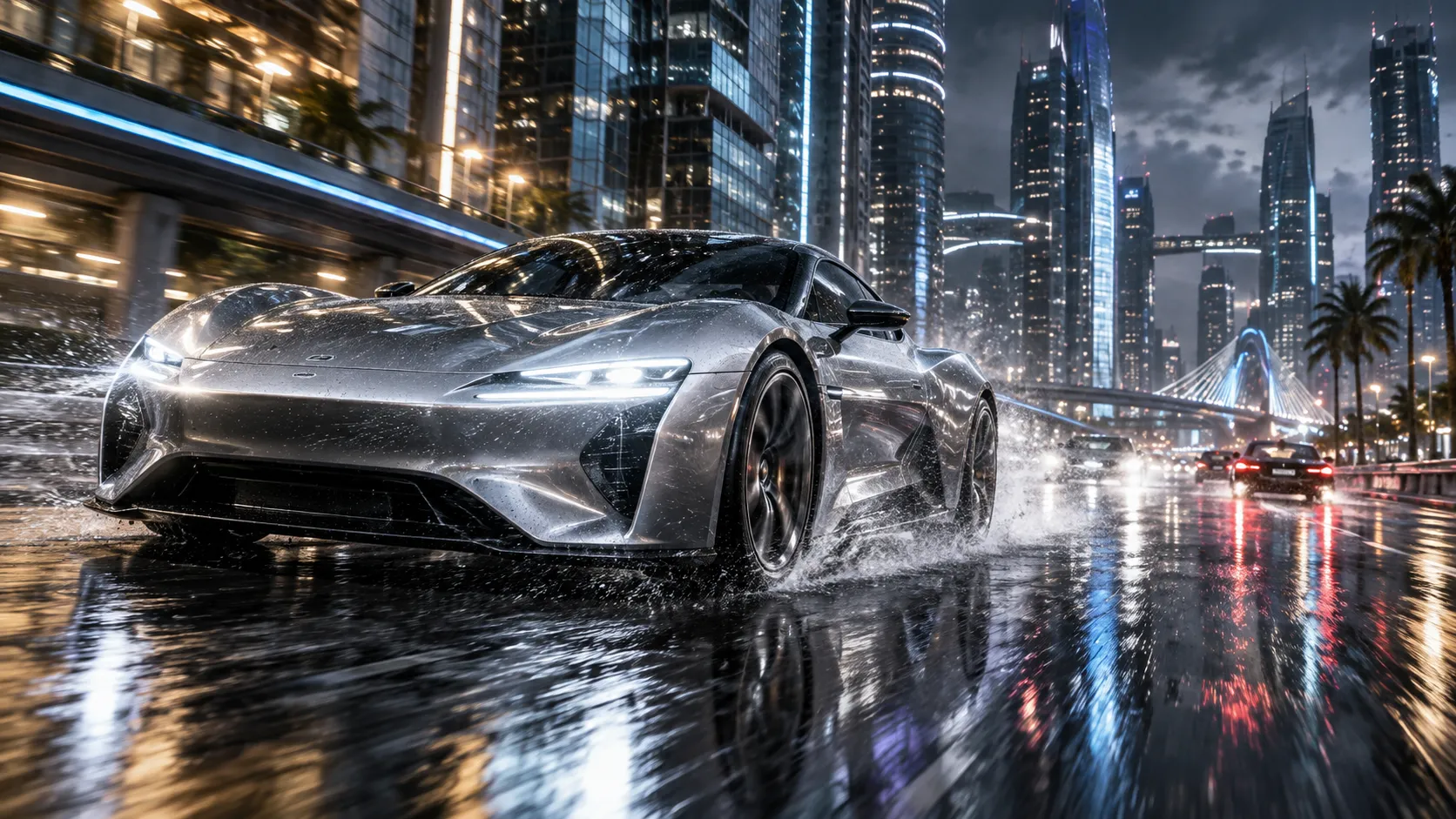
2. Social Media B-Roll (Text-to-Video): Use an AI video generator from text to generate short atmospheric clips—such as rain on a window or neon city lights—to support voiceover videos on TikTok and Reels.
3. Fashion Lookbook Videos (Image-to-Video): Take static fashion photography and add subtle fabric movement and camera pans to showcase apparel fit.
4. Cinematic Storytelling (Text-to-Video): Describe narrative scenes with specific camera angles and lighting to create concept footage or storyboards.
5. AI Artwork Animation (Image-to-Video): Add camera motion and environmental effects like drifting fog to static 2D digital art or illustrations.
What Can You Control in Vidoly?
Vidoly gives you several generation controls across both workflows, including model selection, duration, aspect ratio, and output resolution:
• AI Video Models: Choose the model that best matches the visual style of your project, including Vidoly Cinematic v2.0, Vidoly Realistic v1.5, and Vidoly Anime HD.
• Video Duration: Generate short clips with standard 5-second, 10-second, or 15-second duration options.
• Aspect Ratios: Select widescreen 16:9 (for YouTube and web displays), vertical 9:16 (for TikTok, Instagram Reels, and YouTube Shorts), or square 1:1 (for feed posts and product pages).
• Output Resolutions: Choose from 720p, 1080p, 2K, or 4K options supported by the platform.
Common AI Video Generation Limitations
Keeping current technical limits in mind helps ensure smoother production results:
• Temporal Consistency in Complex Motion: When prompting complex multi-axis movement (such as a character running while the camera turns), minor frame-to-frame variations or texture shifts can occasionally occur.
• Fine Packaging Typography: Very small text on product packaging may experience slight blurring during fast camera shifts. Using steady camera push-ins helps maintain text legibility.
• 360-Degree Object Rotations: A single 2D photograph does not contain visual data for unphotographed angles. When prompting a full 360-degree rotation, the model infers unseen sides, which can sometimes alter subject geometry.
• Source Image Resolution: Uploading low-resolution or heavily compressed photos reduces motion tracking stability. Starting with clear, high-resolution source images yields more consistent results.

Frequently Asked Questions (FAQ)
What is the main difference between text-to-video and image-to-video?
Text-to-video creates a completely new visual scene from a written text description. Image-to-video uses an uploaded photograph as its starting point and adds motion, camera movement, and lighting shifts around that existing visual.
Which is better: text-to-video or image-to-video?
Neither is universally better. Text-to-video is usually a better fit when starting with an idea and generating a visual scene from scratch. Image-to-video is better suited when you already have a photo and want to add controlled motion while keeping the source subject recognizable.
How do I turn an image into a video with AI?
Upload a source image to an image-to-video generator, describe the motion you want, select your video settings, and generate the clip. Tools like Vidoly's image-to-video generator allow you to convert static photos into animated video clips in seconds.
Can AI generate a video from text without uploading an image?
Yes. AI text-to-video generators synthesize the visual scene directly from your text prompt, requiring no source photos or stock footage.
Can I use text-to-video and image-to-video together?
Yes. A common creative workflow is using text-to-video to generate conceptual B-roll or background footage, and image-to-video to animate specific product photos or hero visual assets.
Do Vidoly's text-to-video and image-to-video tools offer the same model choices?
Yes. Vidoly provides access to model selections across both workflows, including Vidoly Cinematic v2.0, Vidoly Realistic v1.5, and Vidoly Anime HD, along with flexible duration, aspect ratio, and resolution controls.
What images work best for image-to-video generation?
Clear, high-resolution photos with good lighting and well-defined subjects provide the most stable starting point for image-to-video animation.
Start With the Workflow That Fits Your Project
Whether you want to build a new visual scene from a text prompt or animate an existing photograph, understanding when to use text-to-video and image-to-video helps you produce video content more efficiently.
Rather than choosing one creation method exclusively, you can combine both workflows to turn ideas and visual assets into dynamic video clips.
If you're starting from an idea or text prompt, generate videos with the AI text-to-video generator.
If you already have a visual asset, start animating with the AI image-to-video generator.
One idea or one image. Endless video possibilities.
Generate cinematic scenes from text or animate your existing product photos and artwork with Vidoly's AI video workflows.
Start Your Free TrialRelated Articles
Can Gemini Remove Image Backgrounds? We Benchmark Tested 6 Complex Scenarios
Can ChatGPT Really Do AI Virtual Try-On? We Tested It vs. Vidoly (With Real Examples)
How AI Replaces a Traditional Fashion Photoshoot: A Step-by-Step E-Commerce Case Study