AI People Remover

AI People Remover

TECHNICAL SPECS

SECTION

AI Remover

MODULE

image_to_image

SKILL ID

ai_people_remover

Upload Image
photo_camera

Upload Image

TEMPLATE PROMPT
Commercial usage license included
MORE IN AI Remover
#ai_remover
AI Object Remover: Remove Unwanted Objects from Photos Instantly

AI Object Remover: Remove Unwanted Objects from Photos Instantly


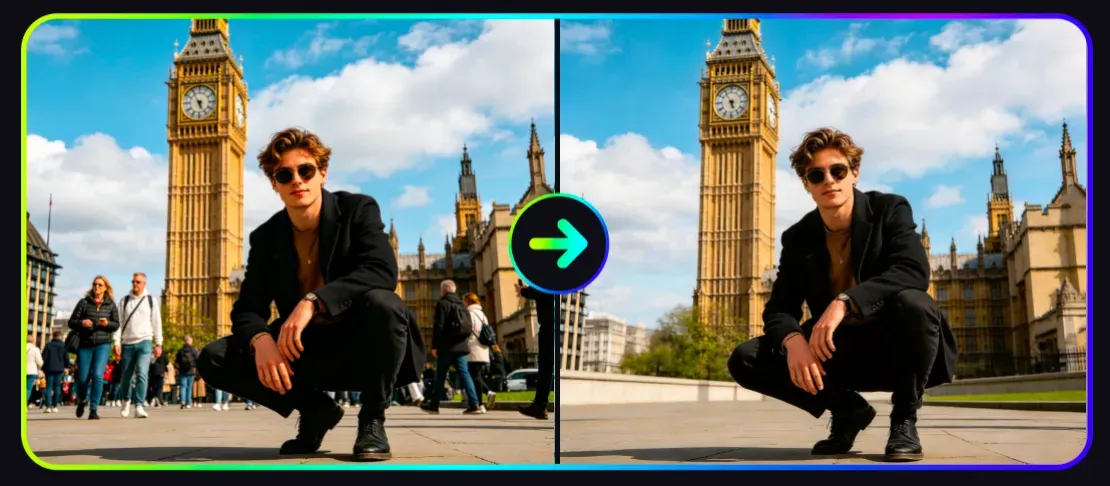
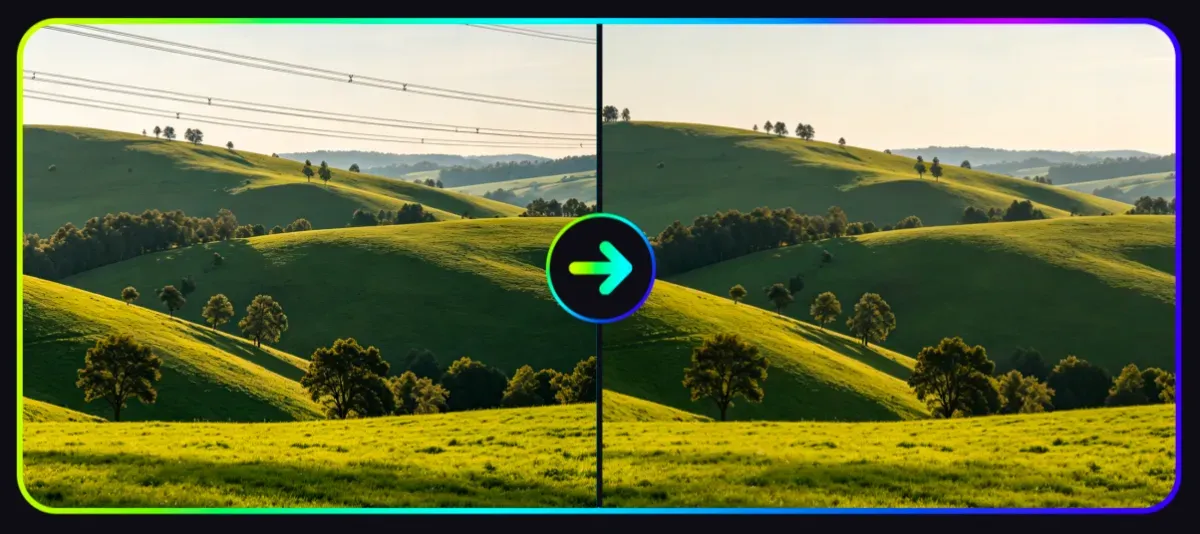
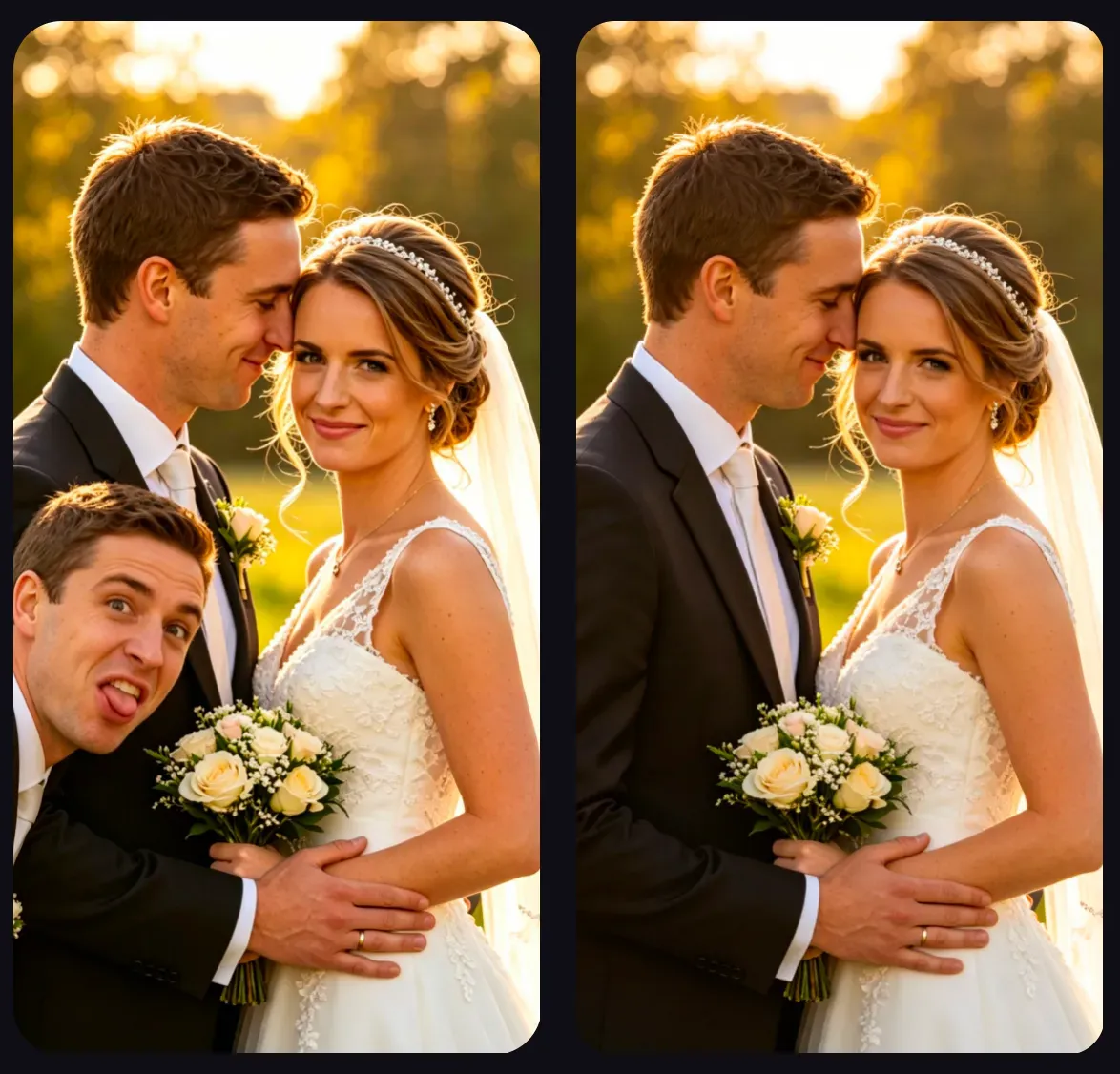
Vidoly AI Object Remover helps users erase unwanted people, tourists, photo bombers, text overlays, logos, watermarks, power lines, vehicles, trash cans, and background distractions from images. Upload a photo, choose the object you want to remove, and the AI reconstructs the surrounding background to create a cleaner image for travel photos, product shots, real estate listings, social media, and marketing visuals.
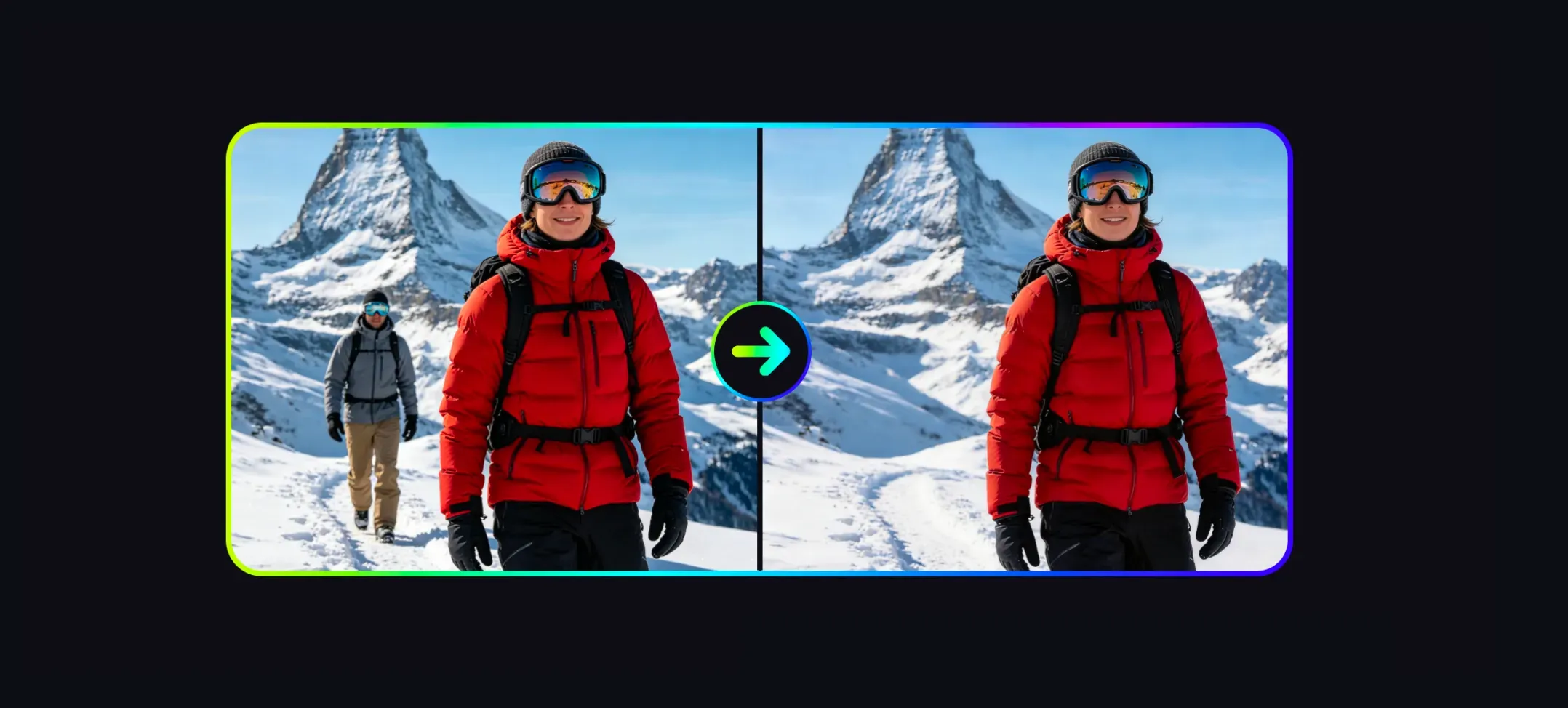
Remove Objects from Photos Free Now
How Does AI Object Remover Work?

How Does AI Object Remover Work?

AI Object Remover works by combining object selection, image inpainting, and background reconstruction. After the user marks or selects the unwanted area, the AI analyzes nearby pixels, textures, lighting direction, shadows, edges, and repeated patterns around the object. Instead of simply blurring the object, the model tries to fill the removed area with new visual content that matches the surrounding scene. For example, it may rebuild sky, grass, wall texture, floor patterns, product backgrounds, or simple landscape details. Results are usually strongest when the removed object is small or medium-sized, clearly separated from the main subject, and surrounded by enough background detail for the AI to reference.

What Can You Remove with AI Object Remover?

What Can You Remove with AI Object Remover?

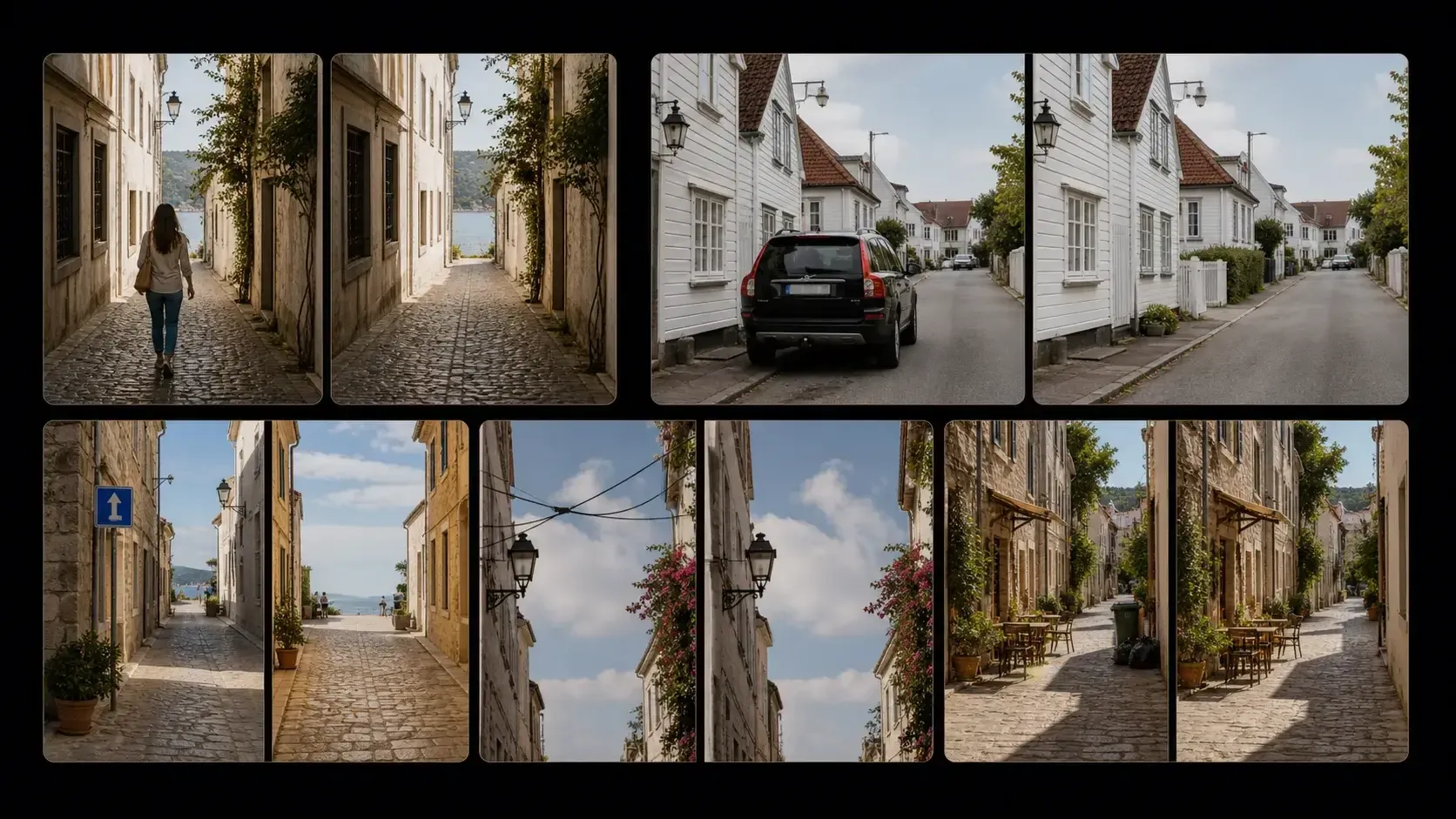
Vidoly AI Object Remover can clean many common distractions from photos, including tourists, photo bombers, background people, street signs, trash cans, parked cars, power lines, text overlays, logos, watermarks, product props, reflections, stickers, cables, stains, and small background clutter. It is useful for travel photography, ecommerce product images, real estate photos, portraits, creator thumbnails, campaign mockups, and personal photos where one unwanted element pulls attention away from the main subject.

Best Photos for AI Object Removal

Best Photos for AI Object Removal

For the cleanest result, upload a sharp, high-resolution photo with good lighting and visible background detail. AI removal works better when the object does not cover faces, hands, product labels, important architecture, reflections, or complex patterns. Simple backgrounds such as sky, grass, walls, floors, roads, beaches, studio backdrops, and plain product surfaces are easier to reconstruct. Crowded scenes, glass reflections, water reflections, patterned clothing, low-light photos, motion blur, and objects that overlap the main subject may need several attempts or manual retouching.

AI Object Remover vs Photoshop

AI Object Remover vs Photoshop

AI Object Remover is better for quick cleanup, early visual drafts, social content, travel photos, ecommerce edits, and users who do not want to use cloning, masking, healing brush tools, or manual retouching. Photoshop is better when the edit must be production-ready, pixel-perfect, or tightly controlled. Professional editors still have more control over complex shadows, reflections, skin edges, product labels, architecture lines, and final print assets. A practical workflow is to use AI Object Remover for fast cleanup and then review the result manually before using it in paid ads, ecommerce pages, printed materials, or client-facing work.

Common Limitations of AI Object Removal

Common Limitations of AI Object Removal

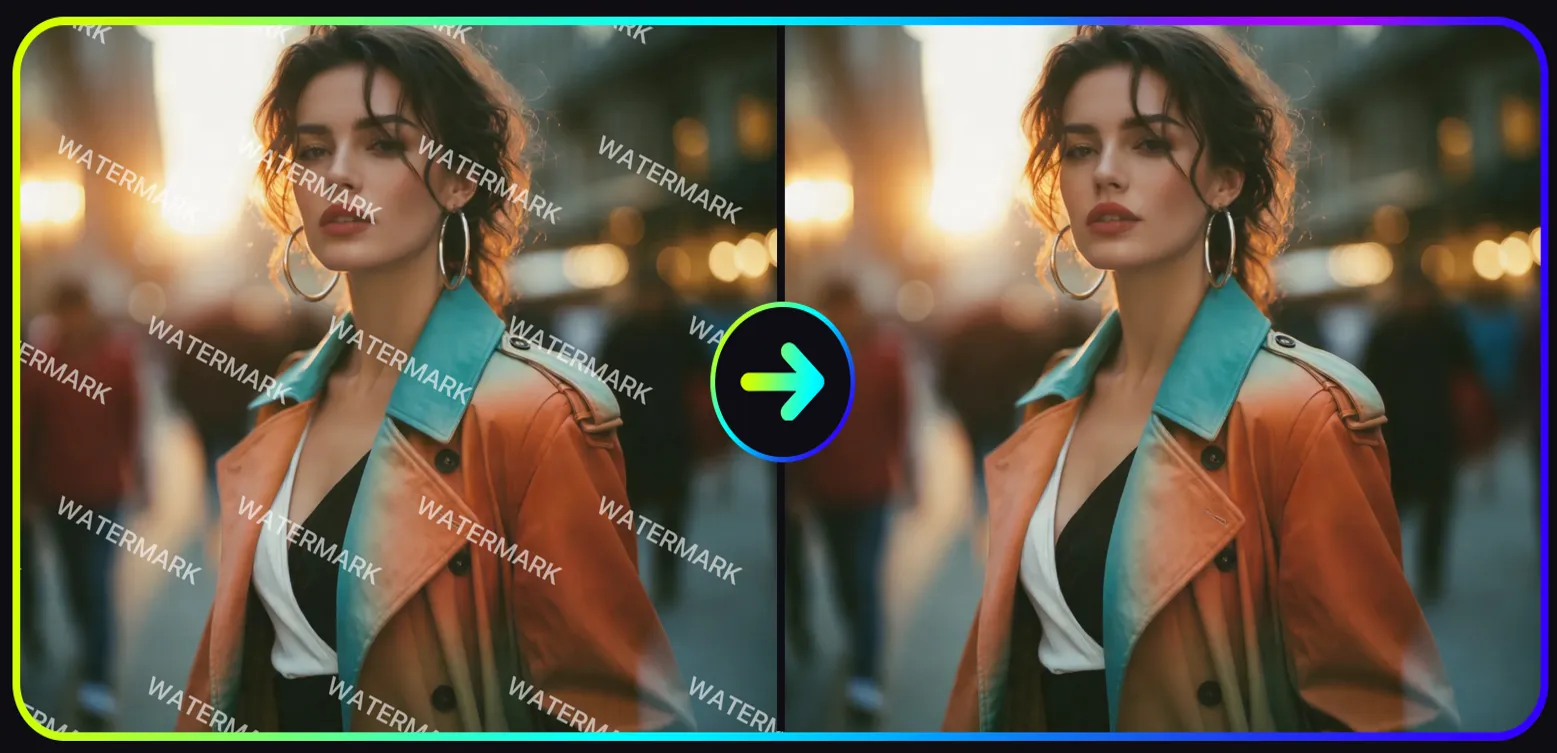
AI object removal is not always perfect. Results may look blurry, warped, or inconsistent when the removed object is large, touches the main subject, overlaps detailed textures, covers text, appears in a mirror reflection, or casts a strong shadow. Watermarks, logos, and branded marks also require extra caution. AI may be able to remove visible marks from an image, but users should only edit images they own or have permission to modify. Removing copyright notices, creator signatures, or ownership marks from unauthorized images may violate platform rules or legal rights. For best results, remove one object at a time, use clear photos, check edges closely, and regenerate if the filled area looks unnatural.

Popular Uses for AI Object Removers

Popular Uses for AI Object Removers

Popular Uses for AI Object Remover Travel PhotographersRemove tourists, crowds, signs, cars, trash cans, or photobombers from landmark photos so the main scene looks cleaner. Ecommerce SellersClean product photos by removing props, labels, cables, background clutter, dust, reflections, or small distractionsbefore using the image on Shopify, Amazon, Etsy, or ads. Real Estate AgentsRemove cars, bins, wires, temporary signs, wall marks, or small clutter from property photos while keeping rooms, floors,walls, and outdoor spaces visually clear. Social Media CreatorsClean portraits, thumbnails, lifestyle shots, and campaign visuals by removing background people, text overlays, unwantedobjects, or visual noise. Designers and MarketersCreate cleaner mockups, ad concepts, presentation images, and campaign drafts before handing final assets to a designer or retoucher.

AI Watermark and Object Removal Tips for Real Creator Workflows

AI Watermark and Object Removal Tips for Real Creator Workflows

Vidoly AI Remover is designed for one-click cleanup and replacement workflows. Instead of manually brushing an object, users choose the removal task, upload the image, and let the AI detect the target element and reconstruct the missing background. Kling or Jimeng Corner Watermarks AI video and image watermarks often sit on top of grain, motion blur, subtitles, or detailed backgrounds. Vidoly works best when the watermark is clearly visible and not mixed with important subject details such as faces, hands, product labels, or small text. Gemini-Style Text Marks or Soft Logo Overlays Some generated image marks have faint glow, compression noise, or semi-transparent edges. The AI attempts to remove both the visible text and the surrounding halo while rebuilding the nearby background texture and lighting. Objects with Shadows or Reflections When removing people, props, trash cans, cars, or background distractions, shadows and reflections may remain challenging because they are visually connected to the object. Review whether the ground shadow, water reflection, or glass reflection has also been cleaned naturally. Complex Backgrounds Water, glass, grass, patterned clothing, hair, brick walls, and grainy AI video frames are harder to reconstruct than plain skies or smooth walls. If the first result looks blurry or repetitive, regenerate or try a cleaner source image. Ecommerce and Product Cleanup For product photos, AI removal should preserve product shape, labels, packaging, shadows, and color accuracy. After cleanup, check that the product edge has not been softened and that no important logo, claim, or label detail was changed.

How To Use Vidoly AI Object Remover

1

Choose the Right Removal Task

Start by choosing the target remover based on what you want to clean up, such as watermark removal, text removal, background people removal, logo removal, object removal, or AI-generated image cleanup.

2

Upload the Image You Want to Clean

Use a clear image where the unwanted element is visible. For AI-generated watermarks from tools such as Kling, Jimeng, or Gemini, upload the exported image directly so Vidoly can detect the visible mark, surrounding texture, and background context.

3

Let AI Detect and Remove the Target Area

Vidoly automatically analyzes the image, identifies the unwanted visual element, and replaces that area with reconstructed background details. It uses nearby colors, lighting, edges, and texture patterns to make the cleaned area blend into the original image.

4

Review the Reconstructed Background

Check the result for blur, repeated patterns, broken lines, leftover shadows, or mismatched lighting. Complex backgrounds such as water, glass, hair, grass, patterned fabric, and grainy AI video frames may need another generation for a cleaner result.

5

Download the Cleaned Image

Save the final image after reviewing the removed area. For commercial, social media, ecommerce, or client-facing use, make sure the image is yours to edit and that removing logos, text, or watermarks does not violate copyright, platform rules, or brand rights.

FAQs

Can AI remove people from photos?

AI can remove some visible watermarks, logos, text overlays, and corner marks by reconstructing the covered background with image inpainting. Results are usually stronger when the watermark is small, the background is not too complex, and the brush covers the full watermark edge. Users should only remove watermarks from images they own, have permission to edit, or are allowed to modify under the relevant platform rules.

Can AI remove text from images?

Yes. It can remove captions, signs, labels, and text overlays by reconstructing the surrounding image area. Small text on complex textures may require extra review.

Can AI remove watermarks from photos?

AI can remove visible watermarks from images, but users should only edit images they own or have permission to modify.Do not remove copyright marks, creator signatures, or ownership notices from unauthorized images.

Can AI remove logos or branding from images?

It can remove logos, stickers, labels, and brand marks from many photos, but commercial use requires caution. Review licensing, trademark rights, product accuracy, and platform rules before publishing.

Why does the removed area sometimes look blurry?

Blurriness usually happens when the background is difficult to reconstruct, such as water, glass, hair, grass, patterned fabric, brick walls, or grainy AI video frames. The AI may not have enough clean visual context to rebuild the area perfectly, so regenerating or using a clearer source image can help.

What photos work best for AI object removal?

Clear, high-resolution photos with good lighting and enough visible background detail work best. Simple backgrounds such as sky, walls, grass, floors, beaches, and studio backdrops are easier to reconstruct.

Can I use AI Object Remover for product photos?

Yes. Ecommerce sellers can remove props, clutter, cables, dust, labels, or small background distractions. Always check product shape, packaging, labels, and shadows before using the image on product pages or ads.

Is AI Object Remover better than Photoshop?

AI is faster for quick cleanup and everyday edits. Photoshop gives more control for professional retouching, complex backgrounds, print assets, and client-facing final images.

Can AI remove objects from complex backgrounds?

It can work on many complex scenes, but results vary. Crowds, reflections, patterned surfaces, architecture lines, transparent objects, and overlapping subjects are harder than simple backgrounds.

Can I use the edited image commercially?

You can use AI-cleaned images for creative drafts, social posts, ecommerce visuals, and marketing mockups if you have the right to use the original image. Before paid use, check licensing, trademarks, image quality, and whether the edit misrepresents the original content.

Is AI object removal free to use?

Vidoly AI provides free credits for users to try AI object removal online. Additional usage, premium features, or higher-resolution exports may require a paid plan.

How do I remove a Kling, Jimeng, or Gemini watermark more cleanly?

Use the dedicated watermark removal workflow and upload the image with the mark clearly visible. Results are usually better when the watermark is small, separated from important subject details, and placed over a background with enough surrounding texture for AI reconstruction.

Does Vidoly require manual brushing to remove objects?

No. Vidoly AI Remover is designed around a one-click removal and replacement workflow. Users choose the removal task, upload an image, and let the AI detect the unwanted element and reconstruct the background automatically.

Related Reading