



AI Text Remover

AI Text Remover

TECHNICAL SPECS

SECTION

AI Remover

MODULE

image_to_image

SKILL ID

ai_text_remover

Upload Image
photo_camera

Upload Image

TEMPLATE PROMPT
28/2000
Commercial usage license included
MORE IN AI Remover
#ai_remover
Remove Text from Images with AI

Remove Text from Images with AI

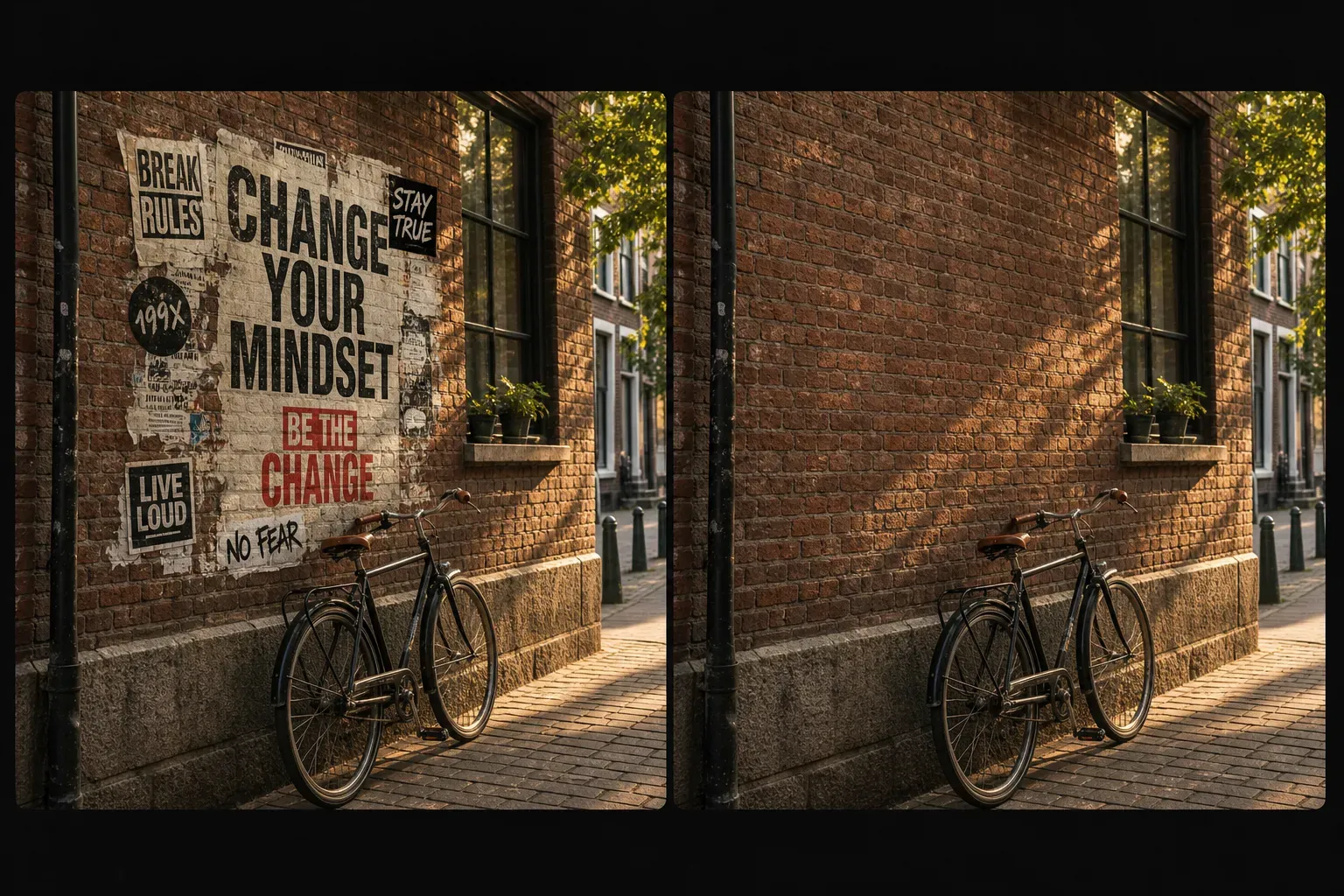
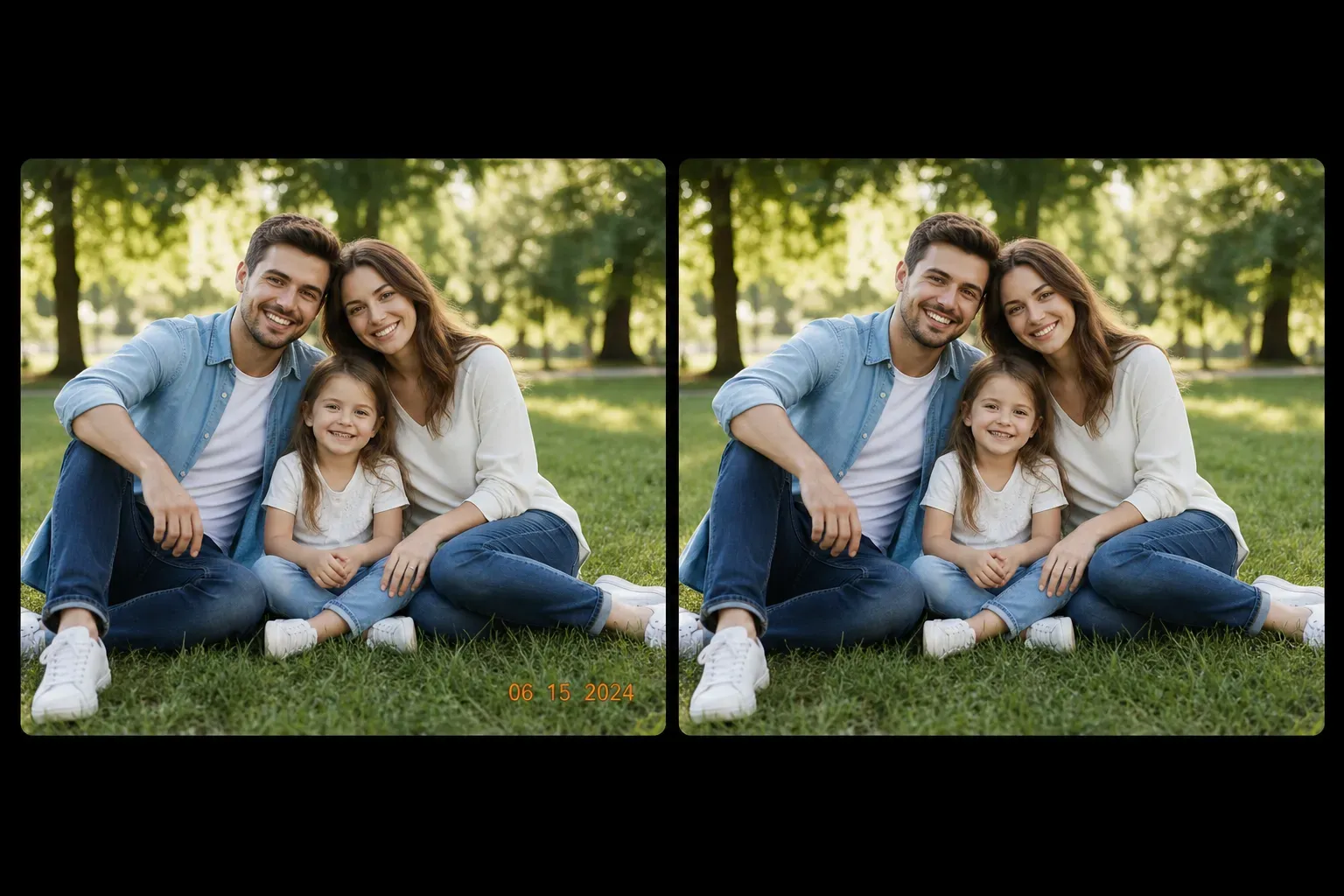
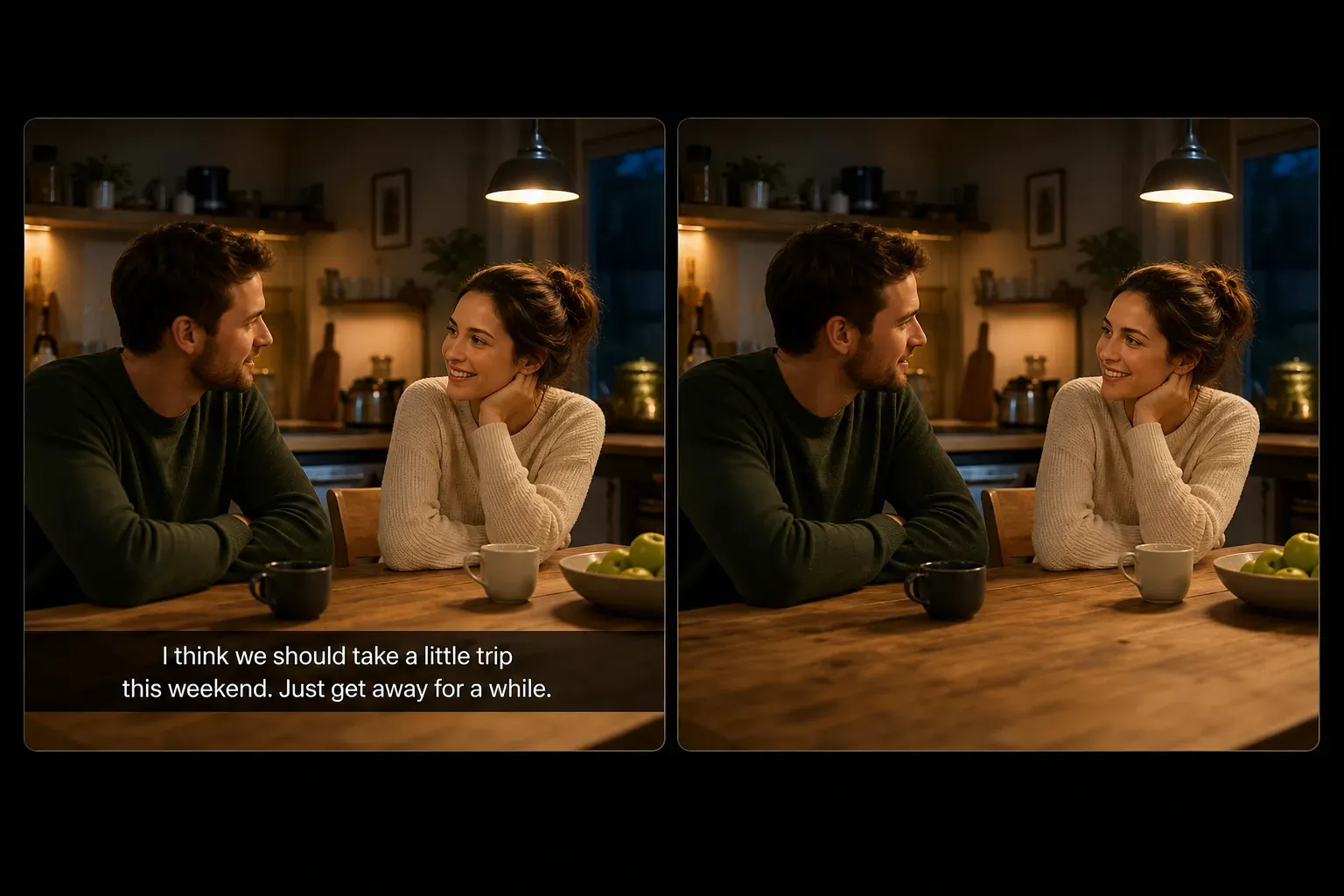
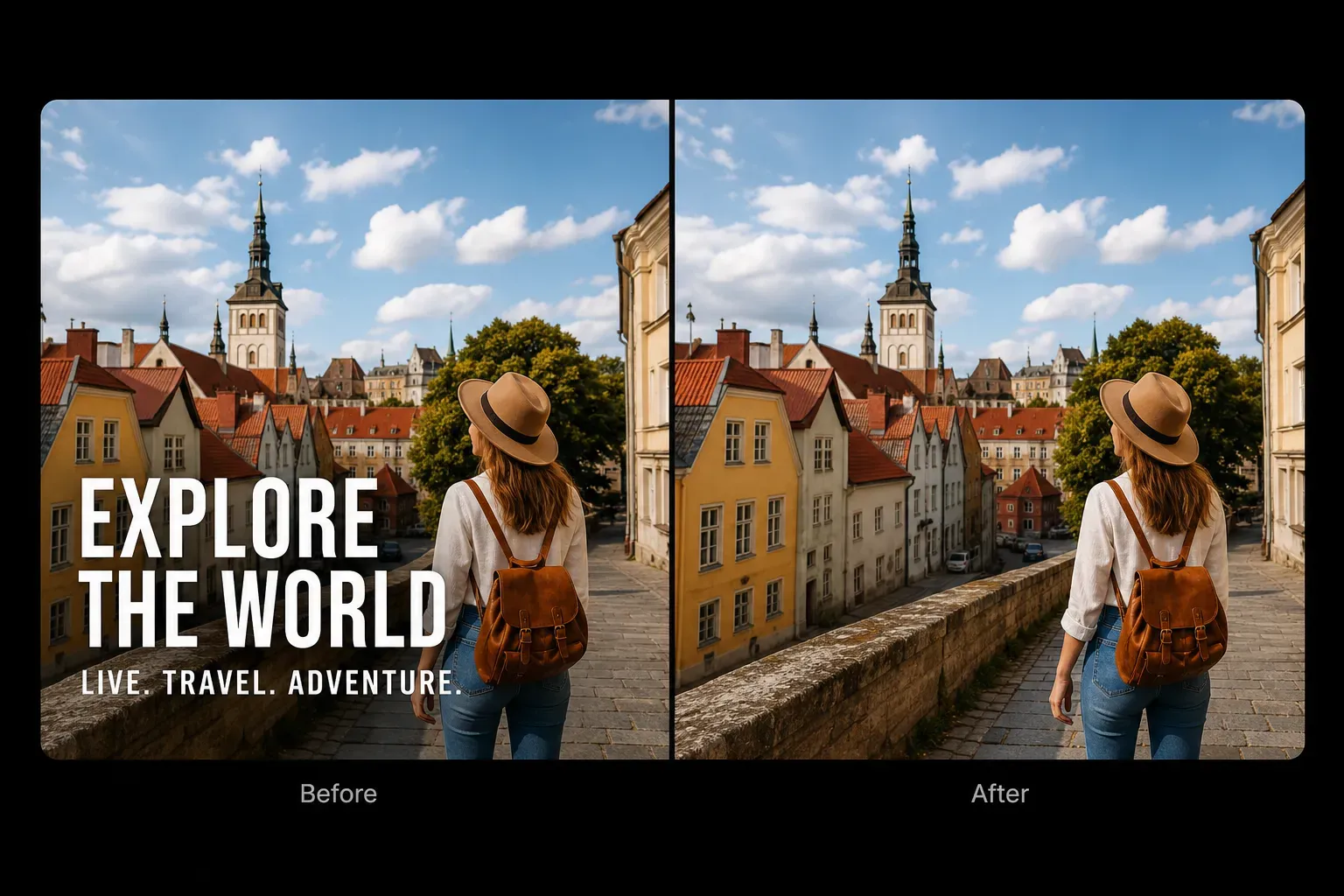
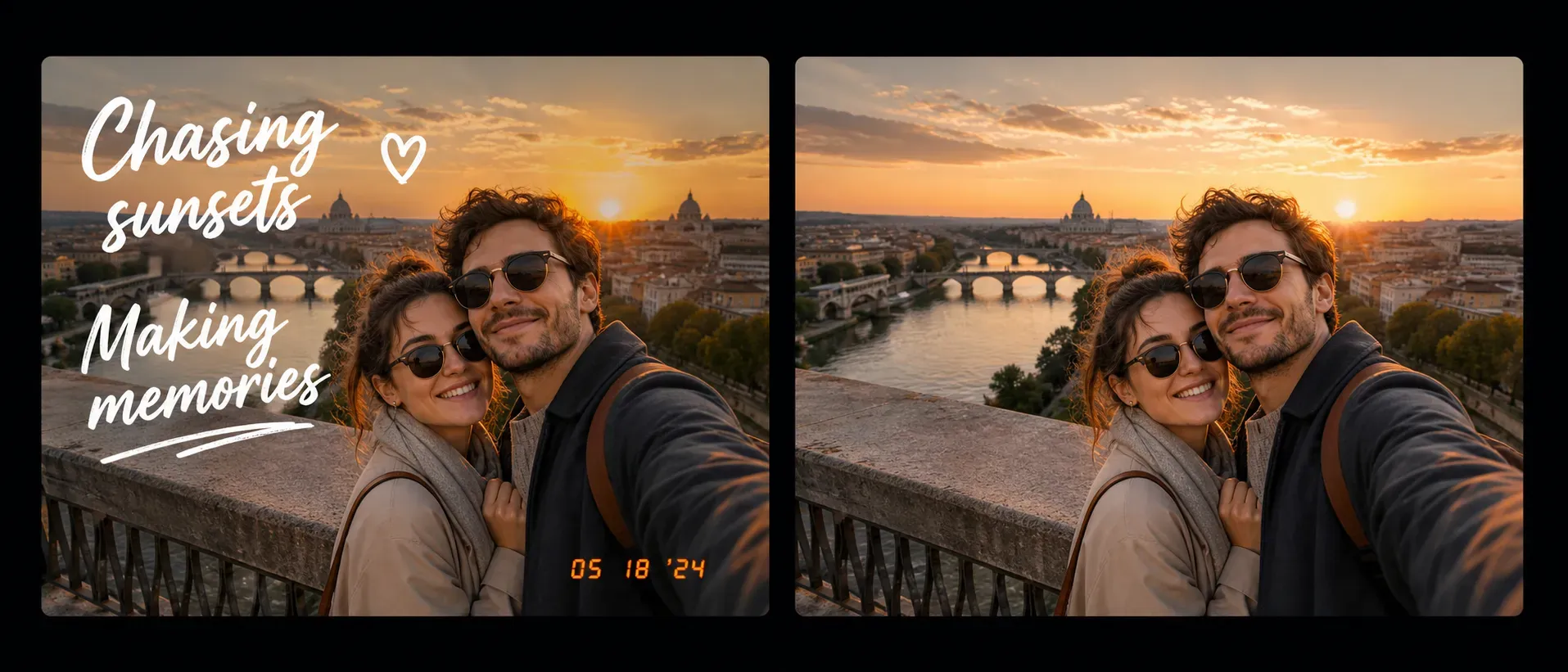
Vidoly AI Text Remover is built for cleaning visible text from photos and image assets. It can help remove text overlays, subtitles, captions, date stamps, labels, signs, stickers, and unwanted words from an image. The AI uses image inpainting and background reconstruction to fill the selected text area with surrounding texture, color, lighting, and edge details, so users can clean images without manual clone stamp or healing brush editing.

How Does AI Text Remover Work?

How Does AI Text Remover Work?

AI Text Remover uses image segmentation to identify the selected text region, then applies image inpainting to reconstruct the area that was covered by the text. The AI estimates missing pixels from nearby colors, shadows, patterns, object boundaries, and background texture. Text on simple backgrounds such as sky, walls, tables, clothing, paper, or blurred areas is usually easier to remove cleanly.

What Types of Text Can AI Remove?

What Types of Text Can AI Remove?

The tool can remove many common text elements, including image captions, subtitles, date stamps, meme text, poster text, social media overlays, label text, sticker text, sign text, and accidental words added during editing. Results depend on text size, opacity, font weight, placement, and the background hidden underneath. Small text on simple backgrounds is easier than large text covering faces, hands, product labels, or detailed patterns.

Best Images for Text Removal

Best Images for Text Removal

AI text removal works best when the text is clearly separated from the main subject and the surrounding background has enough visual detail for reconstruction. Good inputs include photos with text over sky, walls, floors, blurred backgrounds, fabric, grass, tables, or simple product surfaces. Low-resolution images, heavy compression, strong shadows, and text placed over important details can make the cleaned area look blurry or distorted.

AI Text Remover vs AI Watermark Remover

AI Text Remover vs AI Watermark Remover

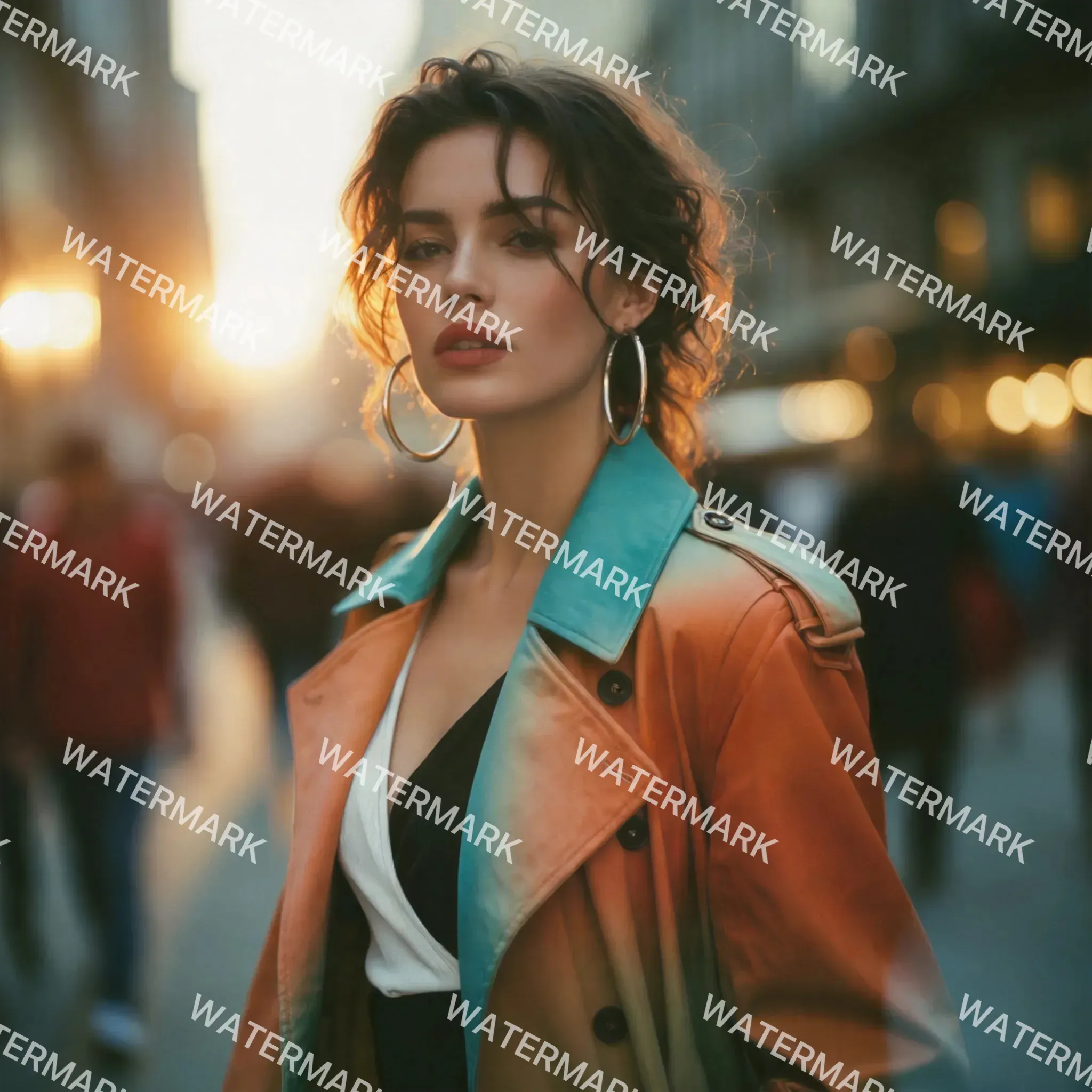
AI Text Remover focuses on visible words, captions, subtitles, signs, and text overlays. AI Watermark Remover focuses on ownership marks, logos, transparent stamps, and branded image overlays. Some watermarks contain text, but the user intent is different: text removal is usually about cleaning captions or unwanted words, while watermark removal often involves licensing, ownership, or platform marks.

AI Text Remover vs Manual Photoshop Editing

AI Text Remover vs Manual Photoshop Editing

AI may struggle when text covers faces, hands, product packaging, brand labels, small printed details, reflections, or complex textures. Large bold text, repeated text patterns, and transparent text overlays can leave blur or incorrect reconstruction. For best results, select the full text area carefully and use the clearest version of the image available.

Responsible Use of AI Text Remover

Responsible Use of AI Text Remover

Use AI Text Remover only on images you own, created yourself, licensed, or have permission to edit. Removing text can change image meaning, remove attribution, hide context, or alter product and legal information. Always review the result before publishing, especially for ecommerce images, brand assets, documents, screenshots, or commercial visuals.

How To Use Vidoly AI Text Remover?

1

Upload Your Image

Choose the photo or image asset that contains unwanted text, captions, subtitles, labels, or date stamps.

2

Select the Text Area

Mark the full text region carefully, including letters, shadows, outlines, and background boxes if present.

3

Let AI Reconstruct the Background

The AI analyzes nearby colors, edges, lighting, and textures, then fills the selected area with reconstructed image details.

4

Review the Cleaned Image

Check whether the repaired area looks natural. Large text or complex backgrounds may need another pass or a cleaner image.

5

Download the Result

Save the edited image for authorized personal, design, ecommerce, social media, or internal creative use.

FAQs

What is Vidoly AI Text Remover?

Vidoly AI Text Remover is an image editing tool that removes visible text from images. It can clean captions, subtitles, date stamps, labels, signs, and text overlays by reconstructing the background behind the selected text.

Can AI remove captions from photos?

Yes. AI can remove many photo captions when the surrounding background has enough detail for reconstruction. Captions on sky, walls, floors, or blurred backgrounds are usually easier than captions covering faces or complex patterns.

Can AI remove subtitles from an image?

Yes. AI Text Remover can remove subtitle text from still images or video screenshots. If the subtitle sits over a simple lower-frame background, the result is usually cleaner.

Can I remove date stamps from photos?

Yes. Date stamps are a common use case. The result is stronger when the date stamp is small and placed over a simple area such as wall, floor, sky, grass, or clothing without fine detail.

Can AI remove text from product images?

Yes, if you own or have permission to edit the product image. Be careful when text appears on packaging, labels, ingredient lists, or legal claims, because removing it may misrepresent the product.

Can AI remove meme text?

Yes. Meme text can be removed when the text does not cover important subject details. Large bold meme text over faces, hands, or detailed backgrounds may leave visible reconstruction artifacts.

Is AI Text Remover the same as AI Watermark Remover?

No. AI Text Remover focuses on captions, subtitles, date stamps, signs, and visible words. AI Watermark Remover focuses on ownership marks, logo overlays, transparent stamps, and branded image marks.

Is AI Text Remover the same as OCR?

No. OCR extracts text from an image so it can be read or copied. AI Text Remover edits the image by removing visible text and reconstructing the background behind it.

Why does the cleaned area look blurry?

Blur usually happens when the text covers details the AI cannot infer accurately. Faces, hands, product labels, reflective surfaces, detailed fabric, and low-resolution images are more likely to show blur or distortion.

What images work best for text removal?

High-resolution images with small or medium text on simple backgrounds work best. Avoid heavily compressed images, dark photos, and text placed over important subject details when possible.

Can I remove text from screenshots?

Yes, but results depend on the screenshot content. UI elements, charts, documents, and dense text blocks may be harder to reconstruct because the background is structured and text-heavy.

Can I use the edited image commercially?

Only use the edited image commercially if you own the image or have the correct license and permission. Review the final image carefully, especially if text removal affects product information, copyright attribution, or legal context.